

On self-hosted deployments, severity, categories, and duplicate management require data plane v2.18.0 or later. Sources require data plane v2.19 or later.
Find a pattern
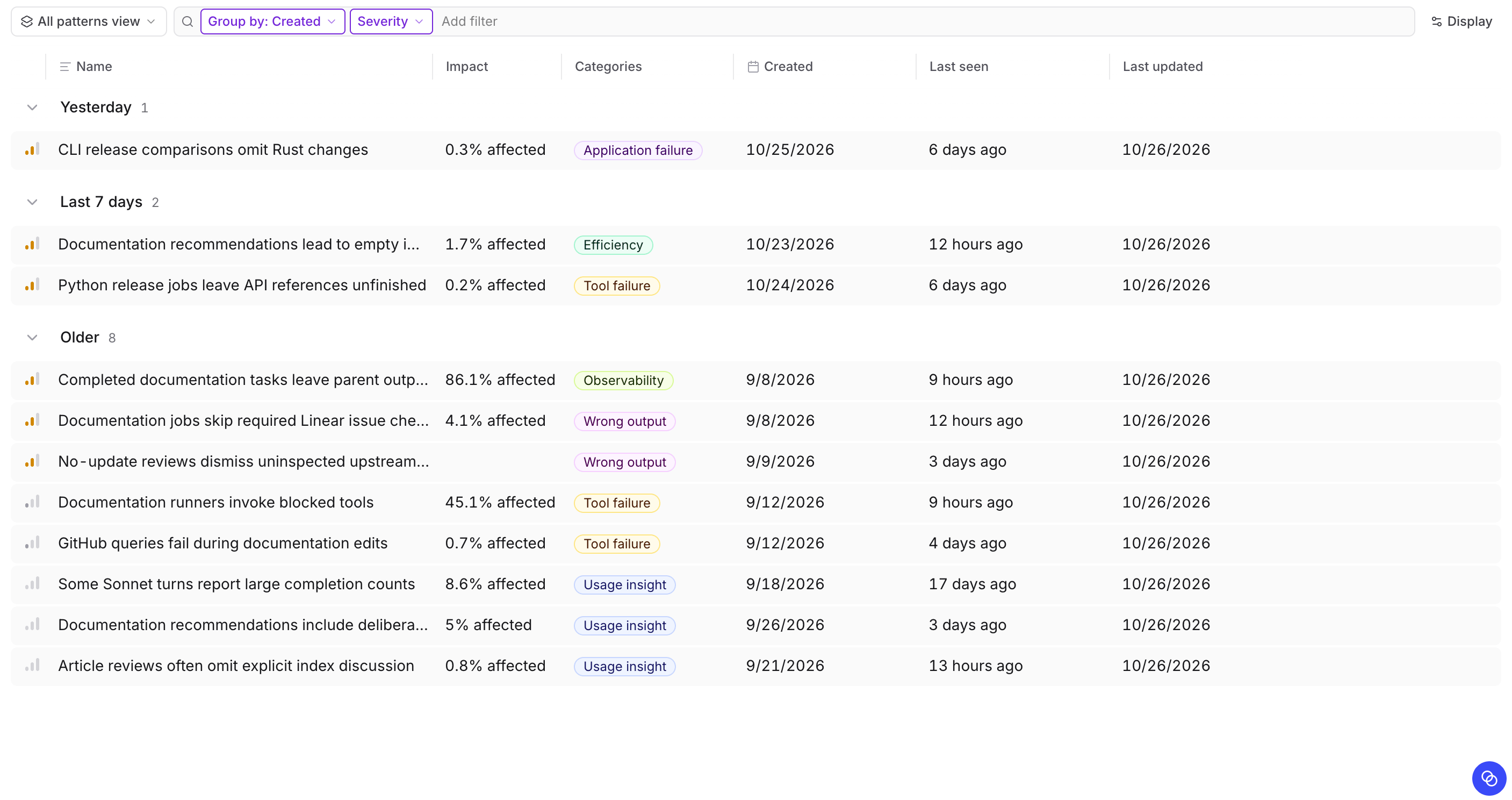
Go to Patterns and click a pattern in the table to open it. Patterns are grouped by the day they were created, newest first, then ordered by severity and overall frequency within each day. Within a severity level, patterns without a frequency measurement appear last. On self-hosted deployments, day and frequency sorting requires data plane v2.16.0 or later. The table shows open patterns by default. To narrow or reorganize it, use the controls above the table:- Search: Find patterns by name.
- Filter: Filter by Status, Resolution, Severity, Category, or automation. A Status or Resolution filter also includes closed patterns.
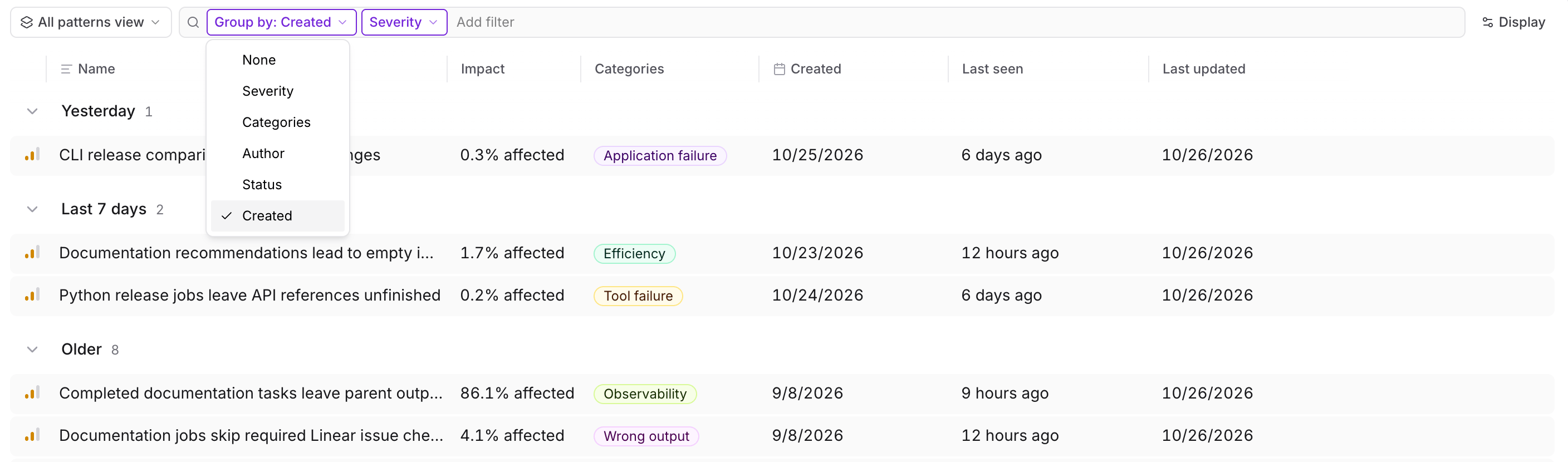
- Group by: Group by severity, category, author, status, or creation date.
- Sort: Click a column header.
Read a pattern
Check Loop’s reasoning against the evidence before acting. To learn what Loop verifies before it saves a pattern, see Verification.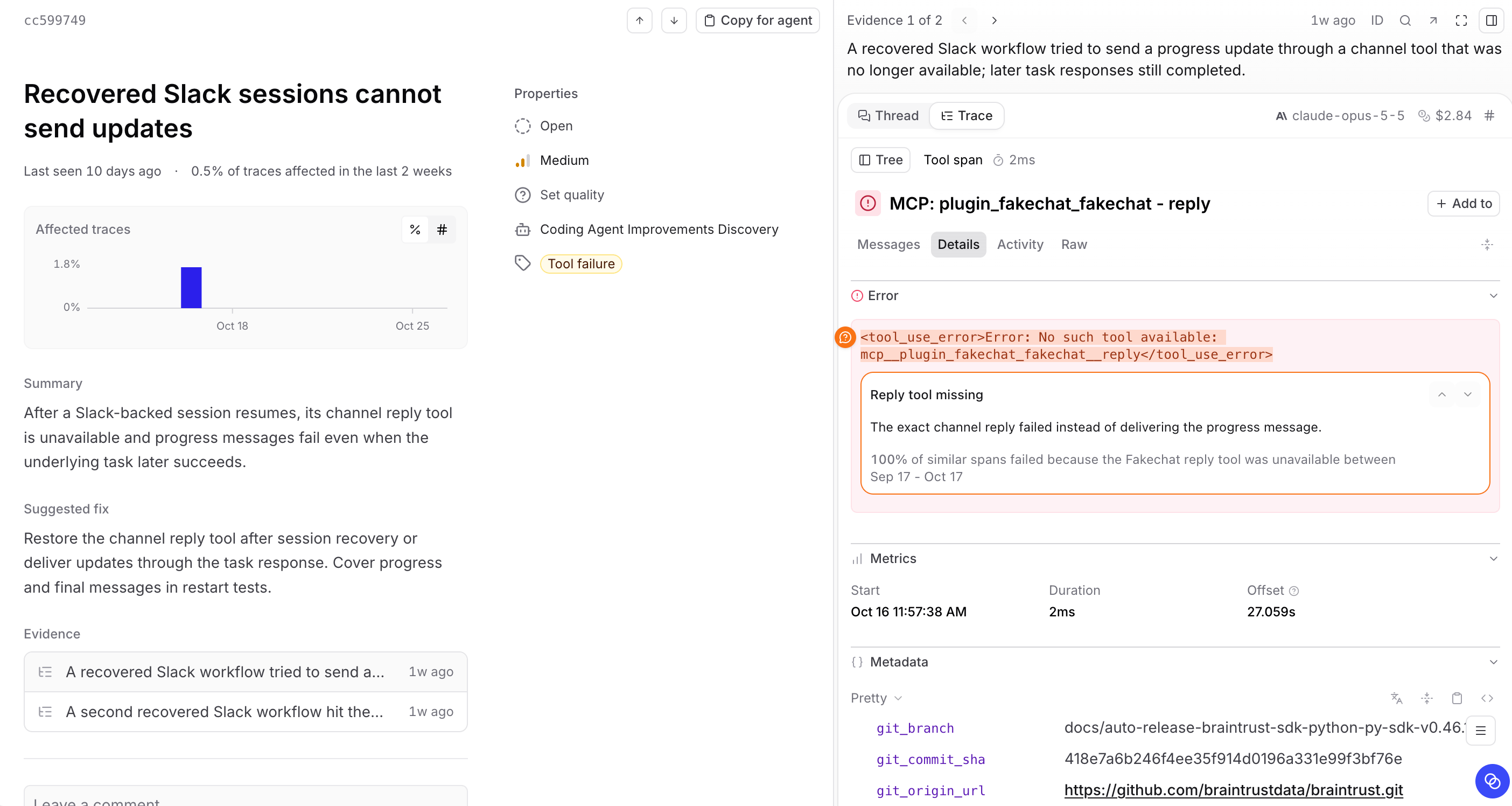
Severity
The pattern’s severity describes its impact. The default rubric defines these levels:- High: Address promptly. The issue likely causes severe or widespread harm, including monetary loss or fraud for end users.
- Medium: A real issue worth fixing, with less urgency.
- Low: A minor issue with limited impact.
- Informational: An observation that needs no immediate action.
Categories
The Categories property describes the kind of finding. Categories come from the rubric of the automation that reported the pattern, or from the project’s rubric when that automation has none. The default rubric tells Loop to assign at most one category, checking these in order:- Safety and privacy: Exposed credentials, secrets, or user data, bypassed access controls, or another security or privacy risk, even before harm occurs.
- Model call failure: An LLM request errors, times out, is rejected, or returns nothing usable.
- Tool failure: A tool, command, query, or API the agent calls errors, times out, is rejected, or returns no usable result.
- Application failure: The work ends without a usable result, and the failing step is the application’s own code, runtime, or client rather than a model or tool call.
- Wrong output: The work completes, but the answer, action, or record is wrong, unhelpful, out of scope, duplicated, or ignores instructions.
- Efficiency: The work completes correctly but uses more tokens, calls, compute, or time than it needs.
- Observability: Logging, tracing, cost accounting, or a scorer’s or classifier’s output is wrong or missing, with no effect on the result.
- Usage insight: How people use the product, with no defect.
Affected traces
When the behavior is measurable, the Affected traces chart at the top of the report shows how many traces were affected over the last 14 days, as a percentage of all traces in the project or as a count. Use the toggle beside the chart title to switch between them. Each trace counts once, even if several spans match. Braintrust computes the chart in the background, so it can be up to a day behind your latest logs.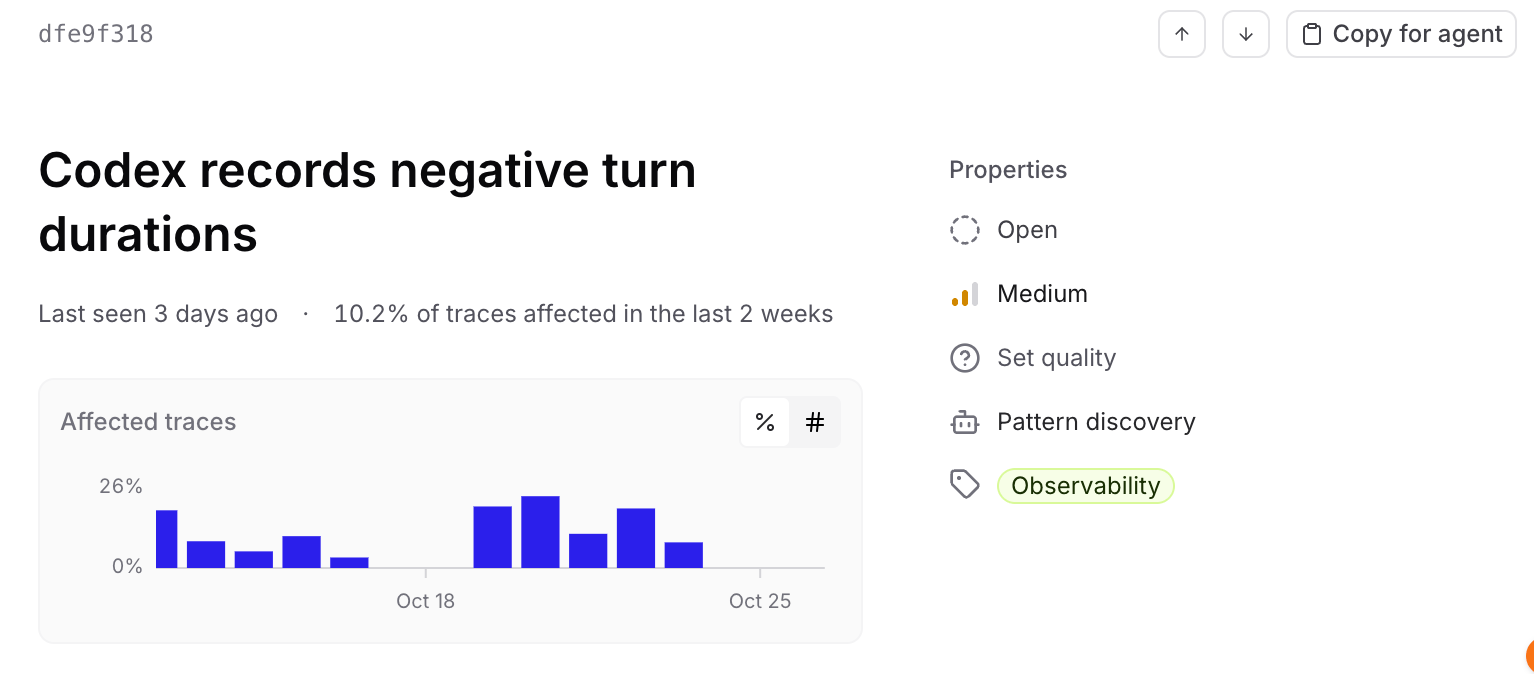
Summary
The summary states what happens and, when Loop compares groups such as models or kinds of requests, which groups it affects. Comparisons include each group’s affected count and size, such as “12/14 (85.7%) orders with several items.” Use them to assess differences between groups. Explanations of the cause appear in Sources.Suggested fix
When Loop has one, the suggested fix recommends an investigation or change. Tool names, field paths, and error strings appear as code.How to monitor
When the behavior can be measured continuously, Loop recommends a scorer, classifier, or facet to track it. To create one, see Make it measurable. Once charts that track the behavior, such as a scorer’s or classifier’s results, are attached to the pattern, they appear under Monitors. These monitor charts cover the same 14 days as the Affected traces chart.Models
Models shows whether the behavior is concentrated in particular models. For each model, it compares two shares over the same 14 days as the Affected traces chart:- Pattern matches: The model’s share of the pattern’s matching traces.
- All traffic: The model’s share of all traces that record a model.
metadata.model.
The list shows up to seven models with matching traces, most matches first, and combines the rest into one N other models row that adds up their shares. Click Show N other models to list every model, including models with traffic but no matches. Click Show less to collapse the list.
Evidence
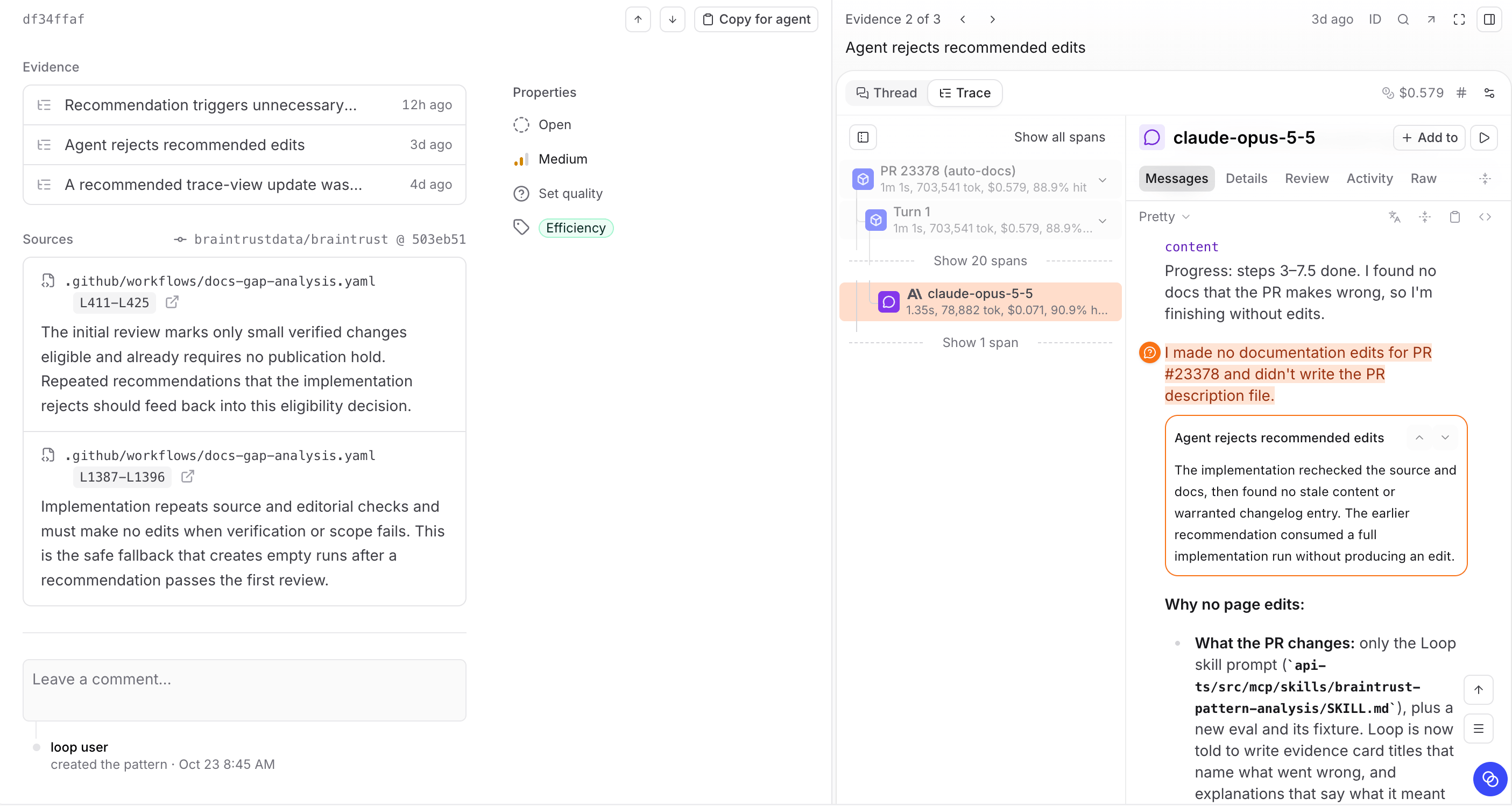
Evidence lists the example traces Loop attached, with each one’s title and when it ran. Loop attaches up to three traces, skipping repeated evidence, and picks those with the most impact, prevalence, clarity, and distinct information about the cause or fix. Click an example to open it in an evidence panel beside the pattern. When your browser window is wide enough, the first example opens automatically.- Move between examples: The panel header shows the example’s position, such as Evidence 1 of 3, with arrows to open the previous or next example. The example’s summary appears below.
- Switch views: Select Thread () to read the example as a conversation, scrolled to the evidence, or Trace () to inspect its spans. The trace tree shows the evidence spans and the spans that contain them, and collapses the rest. Click Show all spans to see the full trace.
- Close the panel: Click in the panel header or press
]. To reopen the example you closed, click in the pattern header or press]again.
Sources
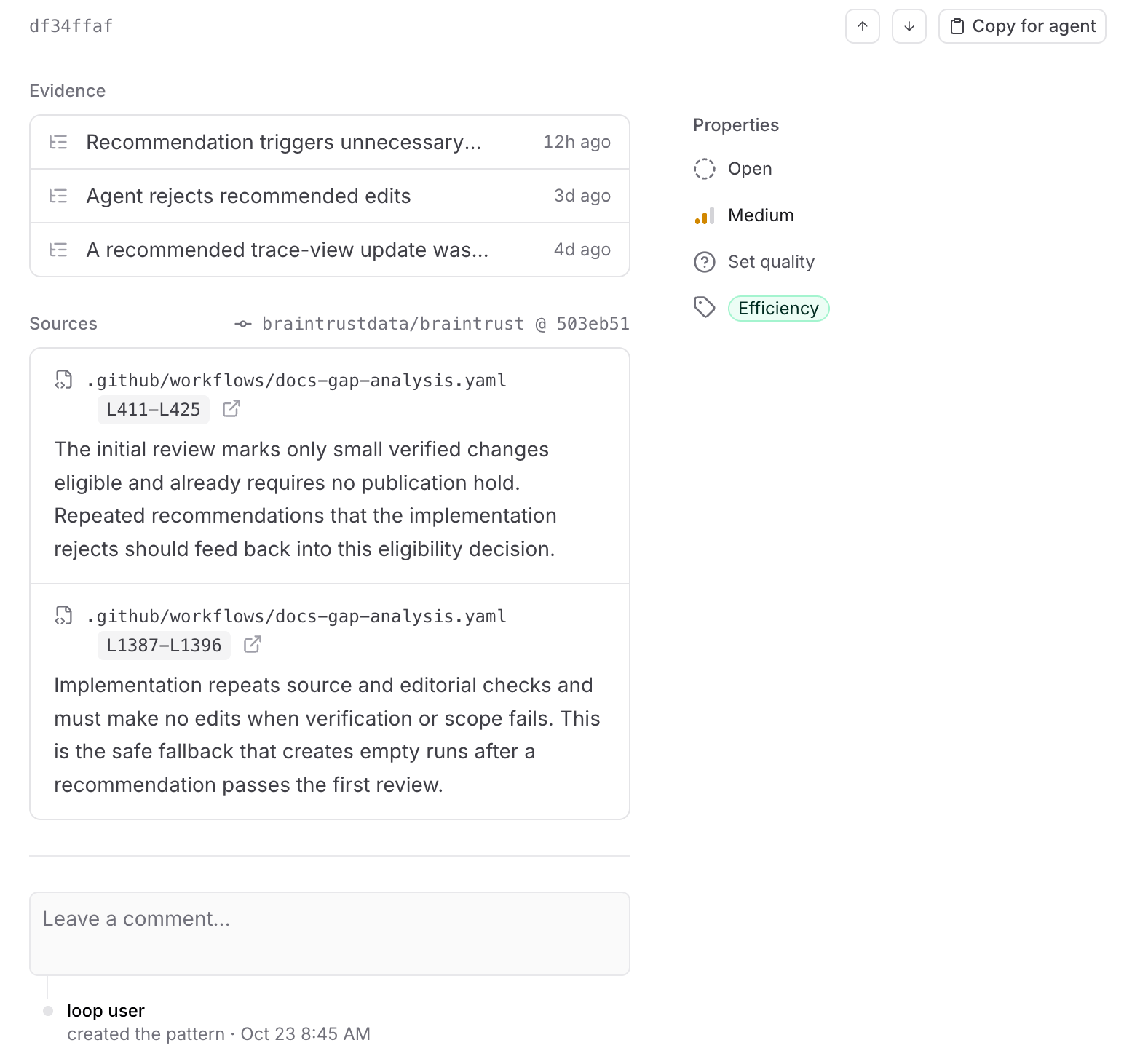
Sources lists code in a connected repository that Loop cites for the finding, such as where the problem originates or where the fix belongs. Loop compares what the traces show with what the code does. When a trace outcome matches what the code produces, such as the same error text or timeout, Loop can cite the code even if the traces don’t show the full code path. A pattern can have sources without example traces.- Location: Each source shows its file path, a line range such as
L279-L286when Loop cites specific lines, and Loop’s explanation. The explanation says what the code does, which outcome in the pattern’s traces it explains, and where the fix belongs when that isn’t obvious. - Revision: The repository and short commit SHA appear as
owner/repo @ abc1234. When all sources share a repository and commit, the revision appears once next to the Sources heading. - Links: For repositories on
github.com, the file path links to the file at the cited commit and the revision links to the repository at that commit. Both open in a new tab. Repositories on other hosts show the path and revision as plain text.
Activity
Activity, at the bottom of the pattern, shows when the pattern was created, each change made in the Properties panel with its reason, and comments. Mention teammates in a comment to notify them, or reply in a comment’s thread. To share a comment, click Copy link to comment in its menu. Commenting requires the project’sUpdate permission, and deleting a comment requires Delete.
Act on a pattern
Choose an action based on whether you want to investigate, track, fix, or share the finding.Keep investigating
While a pattern is open, click Loop agent at the bottom right of the page to investigate it in a chat. The pattern is attached as context, with a badge showing its name. Opening another pattern while the chat is open adds that pattern as context to the current chat without starting a new one.Make it measurable
Under How to monitor, click Create scorer or Create classifier, depending on Loop’s recommendation. Loop opens with a prefilled prompt to create and enable the evaluator, attach a monitor chart to the pattern, and remove the fulfilled recommendation. Decide separately whether to backfill historical traces. This tracks the behavior continuously at lower cost than repeated investigation. Loop can also create a facet so Topics classifies the behavior across all your traces.
Fix it with Loop
With a connected repository and write access, Loop can fix the cause in your code and open a pull request. Select Continue in Loop, then ask for the change:Hand it to a coding agent
Click Copy for agent in the pattern header to copy a Markdown brief with the finding, its evidence, andbt CLI commands for retrieving the full traces. When the pattern has sources, the brief also lists each one’s file location, repository, commit, and Loop’s explanation. Paste the brief into your coding agent to start work on a fix. The agent needs the bt CLI installed and signed in to run those commands.
Share it
When the pattern is open in Loop’s workspace, click Copy link in its header. The link only works for people who already have project access.Edit properties
Editing a pattern’s properties requires the project’sUpdate permission, granted to Owners and Engineers permission groups by default. Without it, the Properties panel is read-only and shows only properties that have a value. Each change can include a reason. Changes and their reasons appear in Activity, and Loop reads your reasons when it evaluates related findings.
Correct severity and categories
- In the Properties panel, click Severity or Categories.
- Choose a value. For Categories, select or clear one or more categories in the searchable list, then close the list.
- Optionally explain the change in the reason box that appears, then click the arrow. To skip the reason, close the box.
Close or reopen
Close a pattern when you’ve acted on it or decided it isn’t useful. To close a pattern:- In the Properties panel, set Status to Closed.
- Optionally set Quality to Useful if the finding was worth acting on, or Not useful if it’s noise, transient, or unimportant.
- Optionally explain each change in the reason box that appears.
How Loop uses quality and reasons
How Loop uses quality and reasons
Loop uses a closed pattern’s quality and your reasons when evaluating related findings:
- Not useful tells Loop not to automatically reopen or recreate a matching pattern while your reason still applies.
- Useful, or no quality, allows Loop to reopen the existing pattern if the behavior recurs, unless your reason says otherwise.
- Your reason defines the scope of your judgment. If you dismiss synthetic staging traffic but new evidence comes from production, Loop evaluates that evidence independently. Be specific about what you want to dismiss and any conditions for reopening.
When Loop closes patterns automatically
When Loop closes patterns automatically
Scheduled runs also review active patterns. Loop treats a pattern as active only if the behavior occurred in the previous two weekdays, not counting weekends:
- Closing active patterns: Loop checks the pattern’s filter and searches for similar traces in case the filter is too narrow. If the behavior hasn’t occurred in that window, Loop closes the pattern.
- New and reopened patterns: Loop saves a new finding as active, or reopens a closed pattern, only when the behavior occurred in that window.
- When Loop can’t confirm: Missing data or a failed query isn’t evidence that the behavior stopped. Loop keeps the pattern’s status and last counts and reports which check it couldn’t finish.
How Loop handles duplicate patterns
How Loop handles duplicate patterns
When several patterns describe the same finding, Loop chooses one as the canonical pattern, merges useful evidence into it, and closes the others as duplicates. Each duplicate retains its history. Its Status is Duplicate, and its Properties panel links to the canonical pattern.If the behavior recurs, Loop updates or reactivates the canonical pattern instead of reopening the duplicate.
Next steps
- Write scorers to measure a behavior a pattern surfaced.
- Build datasets from the traces behind a pattern, then run an experiment to test a fix.
- Create custom facets to track the behavior across every trace.
- Analyze a trace with Loop to dig into a single piece of evidence.
- Customize severity and categories to change how Loop rates and labels patterns.