

Shift+F to expand the trace to fullscreen. To open it in a separate page, click View trace as page. When the trace header has more actions, it moves into the menu.
Anatomy of a trace
A trace represents one end-to-end execution — a single request or interaction in logs, or a single test case run in experiments. Every trace contains one or more spans, each representing a unit of work with a start and end time. Spans nest inside each other to reflect your application’s execution flow. Braintrust assigns a type to each span:
Each span has an
id that identifies it individually, while the trace as a whole is identified by its root_span_id. To learn how these IDs work and which to use when querying or linking, see identify spans and traces.
Inspect a trace
The tabs in the trace pane switch between ways of working with a trace:- Spans: Read the trace as a nested call graph.
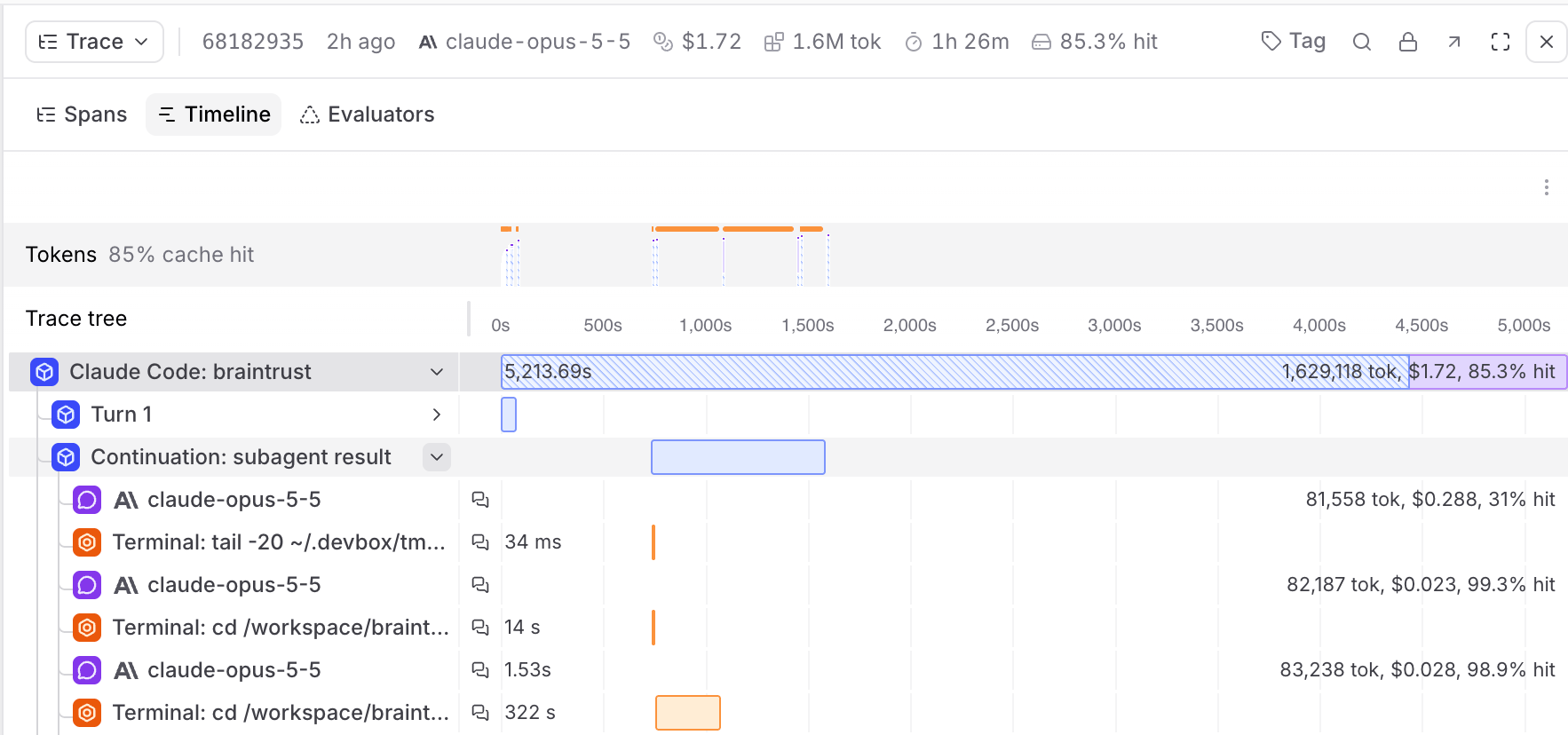
- Timeline: See execution flow and token efficiency.
- Evaluators: Test and apply evaluators to the trace. Available on project logs traces.
Choose a trace layout
On desktop, a trace opens in two panes: the Views pane on the left, where you read the trace as a conversation or a custom view, and the trace pane on the right, where you inspect spans. To change which panes appear, open the layout menu at the left of the header above both panes and choose a layout:- Views and trace (
Shift+\): Shows both panes side by side. This is the default. - Views (
Shift+[): Shows only the Views pane. - Trace (
Shift+]): Shows only the trace pane.
\ to show it.
In the Views pane, select Thread to read the trace as a conversation, or select Custom view for a custom view. The Views pane opens on the tab you last selected in the project.
On mobile devices and in human review, Thread () is a layout you select in the Trace tab instead of a pane. Traces shown inside other pages, such as function run results, monitor chart sample traces, and Loop, also show Thread as a layout. Dataset rows have no thread.
View as a hierarchy
Select the Spans tab to view the trace as a nested hierarchy. Each span is indented under its parent, making it useful for understanding the logical structure of your application: which function called which, how tool calls nest under LLM calls, and how sub-tasks relate to the root task. Expand and collapse branches to navigate the call graph.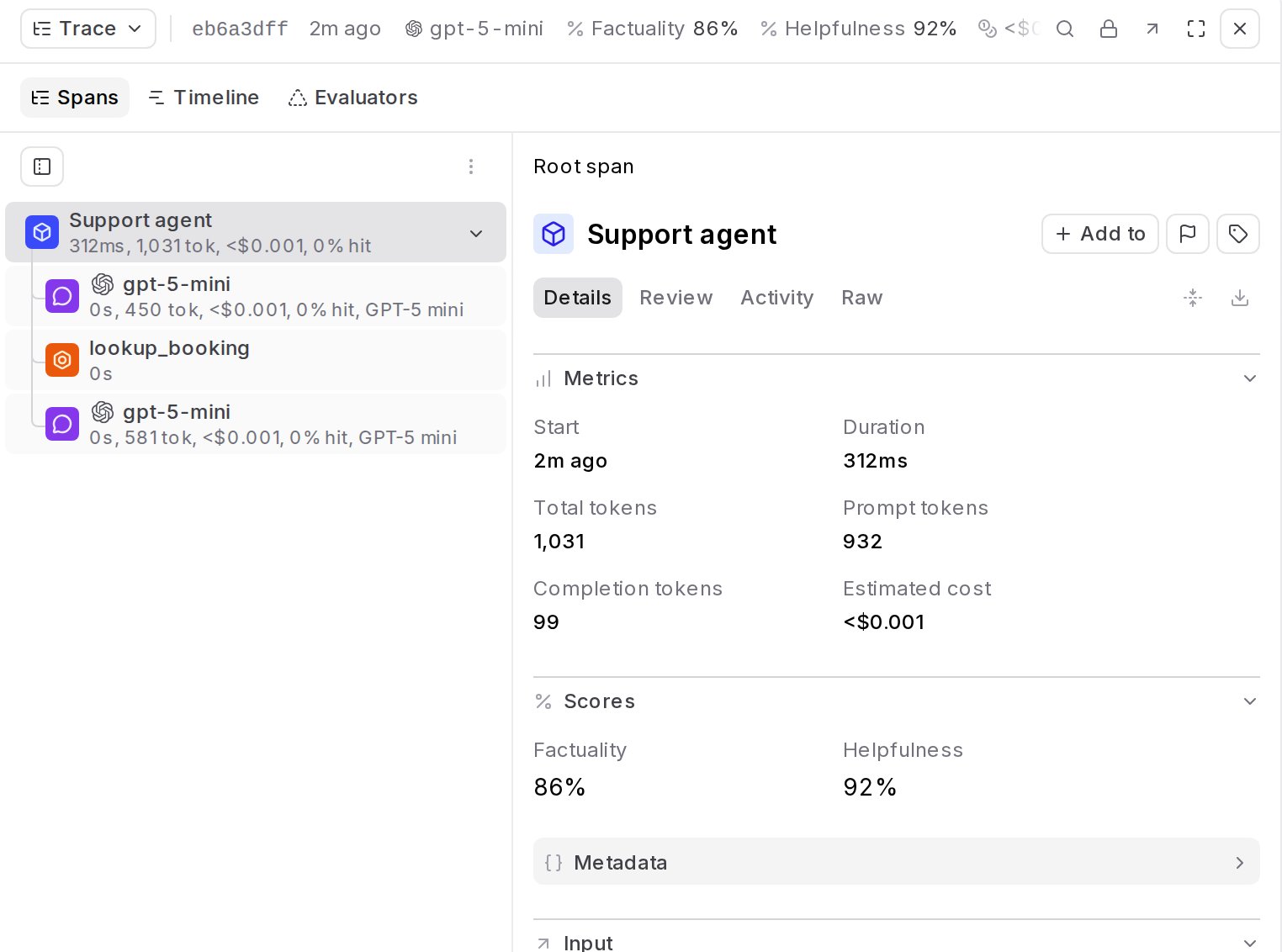
View span details
View span details
Select a span to open its detail panel, which groups the span’s data into tabs:
- Details: Input and output messages, tool calls, annotations, scores, metrics, metadata, context, parameters, and other span fields. Span errors appear on this tab too, with the input and output that produced them. On mobile devices and in human review, when topics are enabled, a Topics section shows topics and facet summaries. On desktop, facet results appear at the top of the thread instead, and on project logs traces, in the Evaluators tab.
- Review: Expected output, human review scores, and the output-versus-expected comparison.
- Activity: The span’s version history and comments. See View activity history.
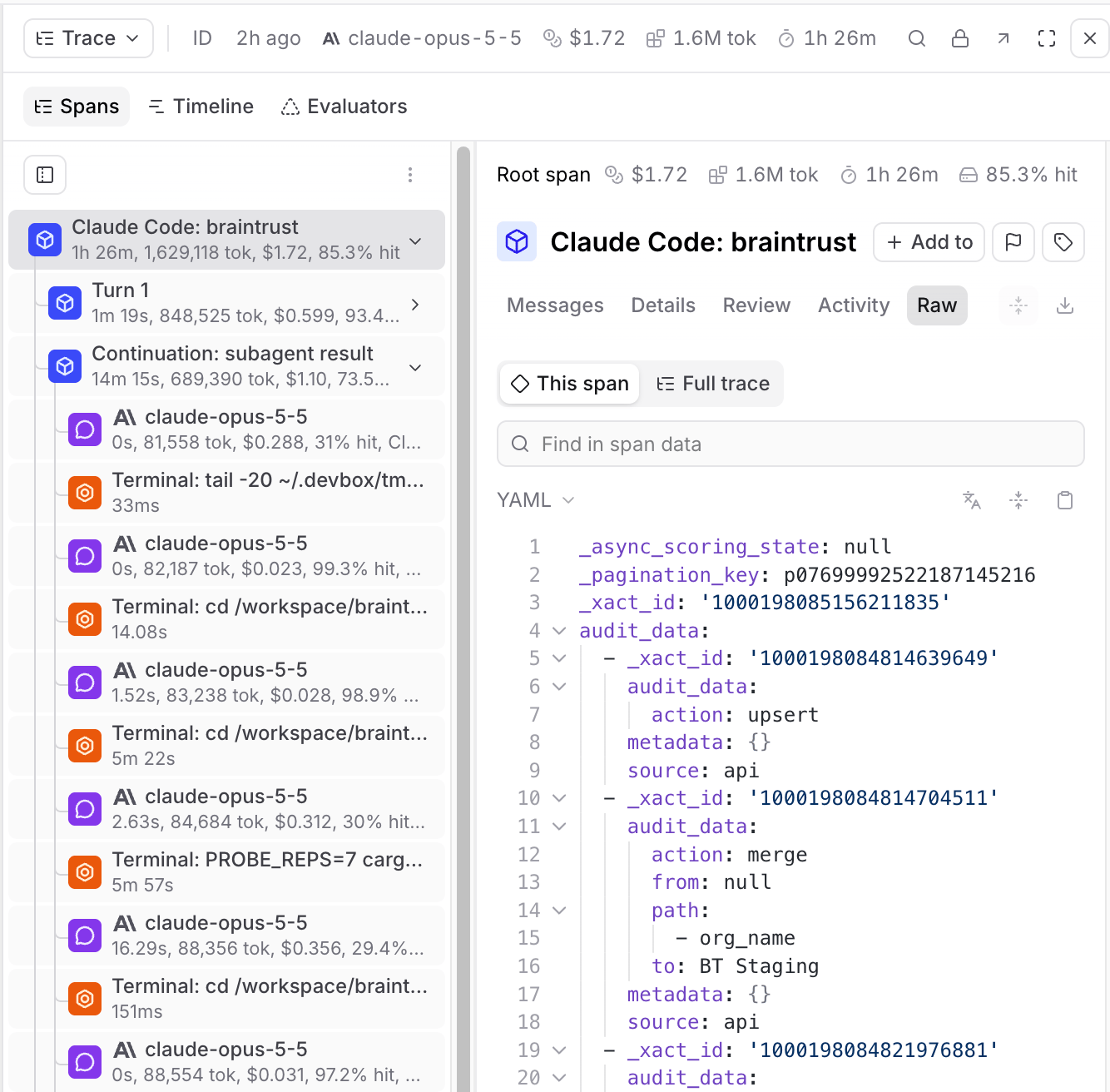
- Raw: The complete JSON representation of the span or trace. See View raw span data.
Display span metrics
Display span metrics
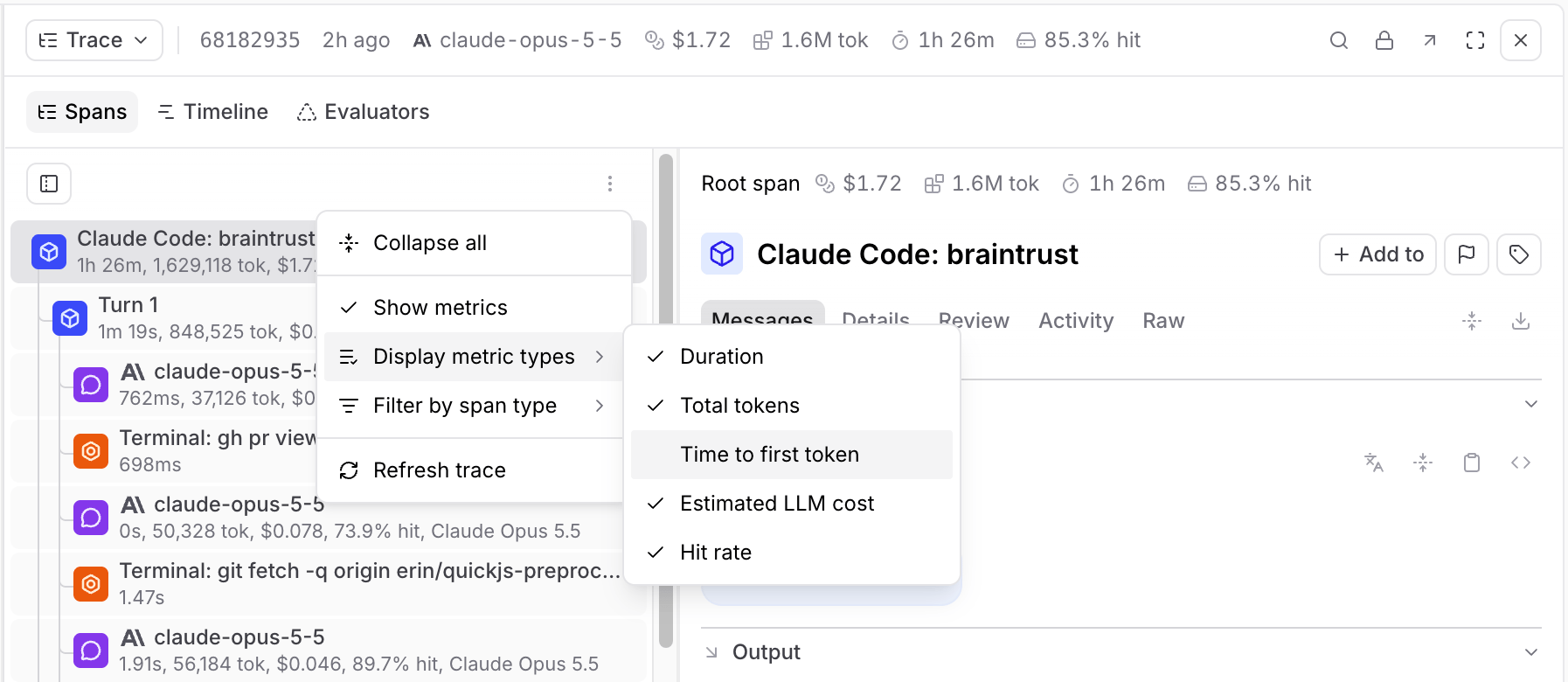
In the nested hierarchy, each span row shows inline metrics. By default, these are duration, total tokens, estimated LLM cost, and hit rate. Cost is propagated from child spans to parent spans, making it easy to see which parts of a multi-step workflow are consuming the most of your cost budget. A parent span’s displayed cost is the sum of its child span costs plus any
metrics.estimated_cost logged on the parent itself. Use > Display metric types to toggle which metrics appear:- Duration (on by default)
- Total tokens (on by default)
- Time to first token
- Estimated LLM cost (on by default)
-
Hit rate (on by default)
View as a conversation
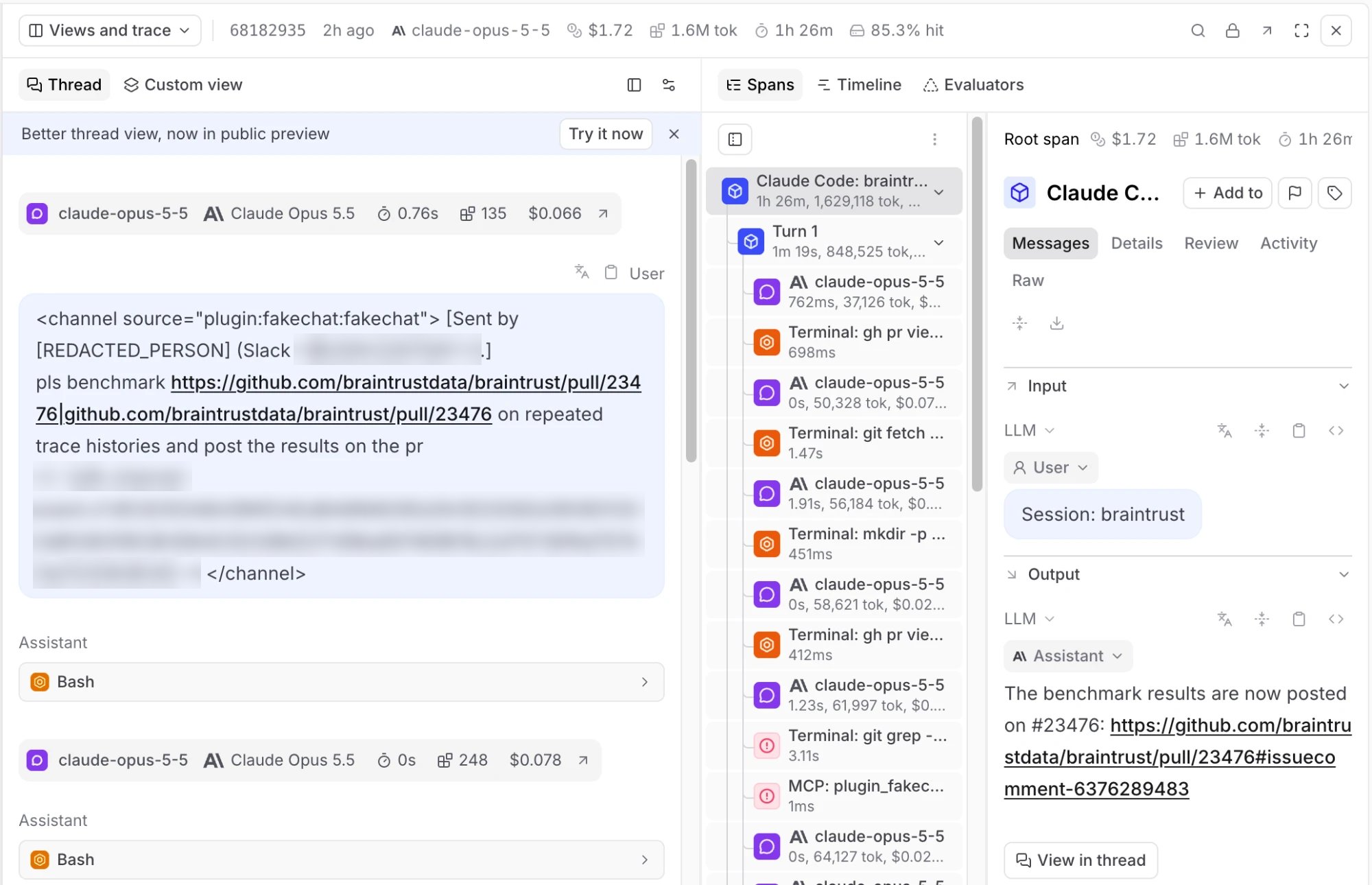
On desktop, select Thread in the Views pane to view the trace as a conversation thread. On mobile devices and in human review, select Thread () in the Trace tab instead. This layout displays messages, tool calls, and scores in chronological order, stripping away the hierarchy to show what was said and in what order. Use it for reading agent conversations and understanding the narrative flow of multi-turn interactions.- In the original thread view, the thread layout renders raw span data by default. To apply a preprocessor, select and choose Preprocessor. The new thread view doesn’t show the preprocessor picker. Choose the built-in Thread preprocessor to format the trace as a readable conversation, or select a custom preprocessor to control exactly how messages are rendered. When topics are enabled, topic tags and facet outputs appear at the top of the thread layout as well.
- To write a custom preprocessor, choose + Custom preprocessor in the picker, then click Copy prompt to pass coding-agent instructions for inspecting your real trace data and generating the function. See Write a custom preprocessor. Output that isn’t a recognized message array is converted to text, which the thread layout renders labeled with the preprocessor’s name instead of a role. If a preprocessor returns nothing at all, the thread layout shows an empty state with a Create custom preprocessor button.
- If a trace has no LLM spans, the thread layout shows a No LLM spans to display empty state. Inspect the full trace in the trace panel, or click Hide thread panel to close the thread. In the original thread view’s default raw-span mode, recognized user messages from the root span and failed task errors still render in place of LLM content. User messages are followed by a No LLM spans were recorded for this thread notice with a View spans action that opens the trace, while a rendered task error appears on its own without that notice.
- Use Find or press
Cmd/Ctrl+Fto search within the thread layout and quickly locate specific content such as message text and score rationale. Matches are highlighted in-place using your browser’s native highlighting. This search is scoped to the thread layout content — use the trace’s search feature to search across spans.
Use the new thread view
The new thread view organizes a trace by conversation turn. Each turn shows the request, the work the agent did to answer it, and the final response, so you can follow a long agent trace without reading every intermediate message.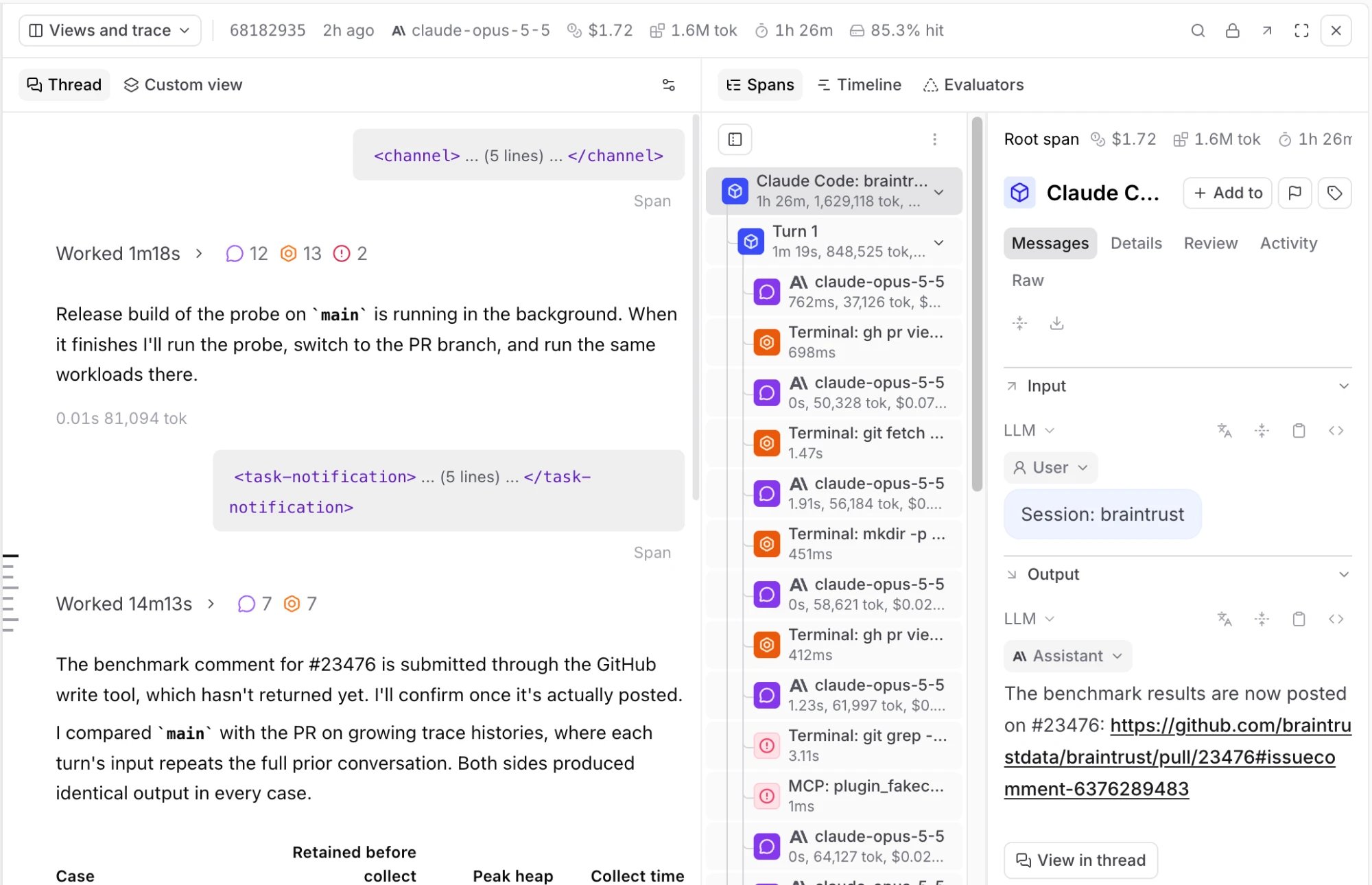
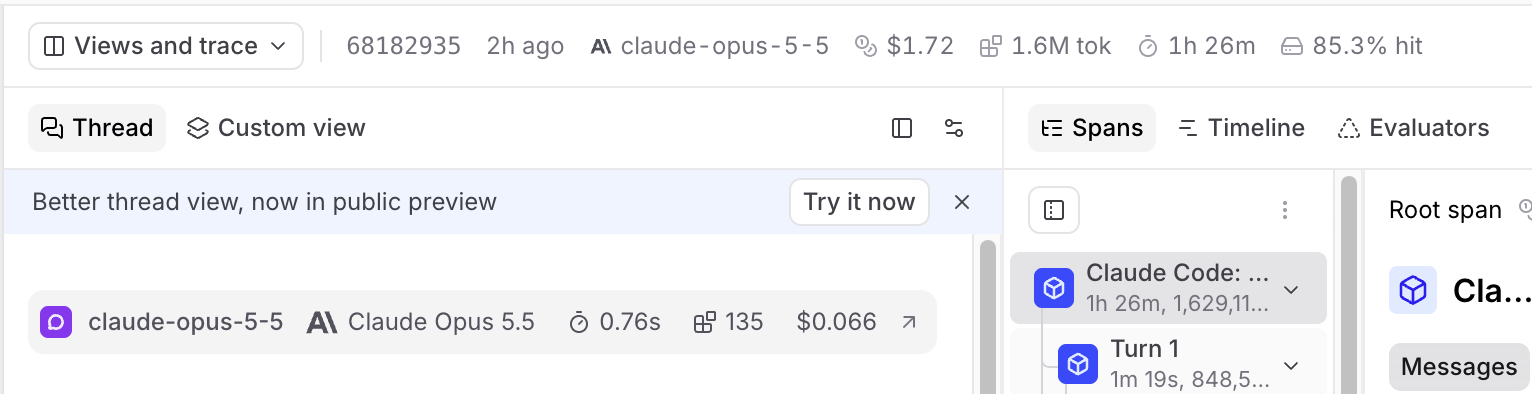
- Each turn starts with its user message. The LLM and tool calls the agent made before responding collapse into a Worked block that shows how long the turn took and how many LLM calls, tool calls, and errors it contains. Select the block to expand it. When a finished turn contains only one LLM or tool call, such as a single failed request, that call appears directly in the turn without a Worked block.
- Each tool call appears with the LLM call that requested it. Expand a tool call to see its input and output side by side, and select LLM span to open the span that requested it.
- Work done by a sub-agent is nested under the step that started it.
- A Compaction divider marks where the agent’s context was compacted. When the trace has a compaction span, the divider shows how long the compaction took and how many messages it replaced, when the span records them. Select these details to open the span. When a provider returns the compacted context in encrypted form, as OpenAI does, one divider appears above the first turn that sends it. The thread view doesn’t display the encrypted content, and Find doesn’t match it.
- The rail along the left edge marks each turn and step. Hover over it to open the Thread contents list, then select an entry to scroll to it and expand it.
- If the trace has saved findings, their supporting evidence is highlighted in the thread. To open a highlight’s card, click the orange (Show reason) button next to it. Click the button again to hide the card. Use the arrows on the card to move to the previous or next example, which opens that example’s card.
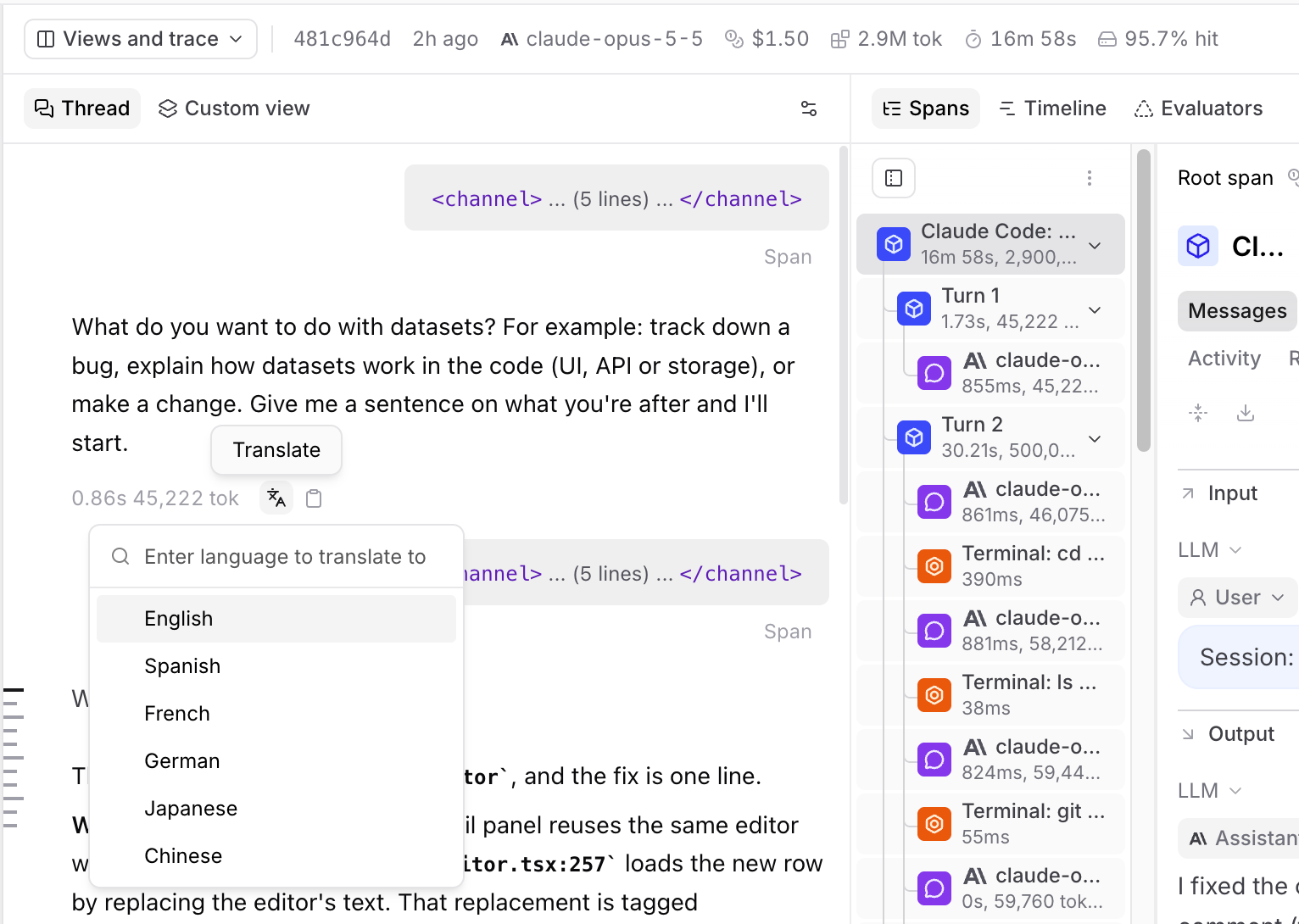
- Hover over an LLM response or a user message to reveal Translate and copy buttons. See Translate message content. For a user message that also contains images or other non-text content, only its text is translated and copied.
- In the Timeline () layout, click View in thread on a span’s row to open the thread scrolled to that span. The button appears only on spans that are part of the thread.
- Expand/collapse all expands or collapses the work in every turn. You can also press
W. - Group intermediate steps and Group tool calls control whether intermediate steps collapse into each turn’s Worked block and whether consecutive tool calls are grouped. Both are on by default.
Generate thread summaries
Thread summaries are Loop-generated headings for each turn and a short summary of the whole conversation, so you can scan a long agent trace before reading it. To turn them on, select and check Generate summaries, or click Try it now on the Thread summaries, now in public preview banner at the top of the new thread view. The setting applies to your current browser, and so does dismissing the banner. With summaries on:- Each turn starts with a generated heading that describes the work in that turn. These headings also appear in the Thread contents list.
- A Summary bar at the top of the thread summarizes the conversation. Select it to expand the full text, and select an underlined phrase to jump to the turn it describes.
- Summaries that are ready when you open a trace appear with the thread. Summaries that finish later wait for you, so the thread doesn’t shift while you read. The bar shows Generating summaries…, then Show summaries once they’re ready. Select Show summaries to reveal all of them at once.
View as a timeline
Select the Timeline tab to understand execution flow and token efficiency:- Timeline bars — Each bar represents a span scaled by a metric of your choice and color-coded by span type.
- Token distribution overview — Breaks down LLM span token usage by type (uncached input, cached read, cache write, and output) and shows cache hit rate per span, making it easy to spot where caching is and isn’t working.
Scale timeline by metrics
Scale timeline by metrics
To change the metric used to scale the bars and token distribution overview, select and then Scale by. Available options:
- Duration (default) — Bar width represents wall-clock time
- Total tokens — Bar width represents total token usage, useful for identifying spans that consume the most context
- Prompt tokens — Bar width represents input token usage
- Completion tokens — Bar width represents output token usage
- Estimated cost — Bar width represents the estimated cost of each span
Filter by span type
Filter by span type
To show only spans of specific types in the timeline and token distribution overview, select and then Filter by span type.
- Enable Maintain hierarchy to preserve parent-child relationships: Parent spans are kept even if they don’t match the filter, as long as they have matching descendants.
Assess prompt caching effectiveness
Assess prompt caching effectiveness
To assess prompt caching effectiveness at a glance, select and then Cached tokens view. This filters the timeline to LLM spans only, flattens the hierarchy, and scales each bar by cached read tokens with stacked segments for the input token breakdown (uncached input, cached read, and cache write). The Scale by and Filter by span type options and Maintain hierarchy are unavailable while it’s active.
Post-hoc scoring spans
Post-hoc scoring spans
Post-hoc scoring spans (such as AutoEval results applied to logs) run after the root span completes and extend beyond the execution timeline. By default, the timeline hides these scorer spans to focus on the root execution duration. To display scorer spans inline, select and toggle Include score spans in timeline. This expands the timeline axis to fit the scoring duration, making it easy to see how long evaluations take to complete on each trace.
Change span data format
When viewing a trace, each span field (input, output, metadata, context, etc.) displays data in a specific format. Change how a field displays by selecting the view mode dropdown in the field’s header. Available views:- Pretty - Parses objects deeply and renders values as Markdown (optimized for readability)
- JSON - JSON highlighting and folding
- YAML - YAML highlighting and folding
- Tree - Hierarchical tree view for nested data structures
- LLM - Formatted AI messages and tool calls with Markdown
- LLM Raw - Unformatted AI messages and tool calls
- HTML - Rendered HTML content
View activity history
Select the Spans tab, select a span, and then select Activity in the span section tabs to see the row’s change history over time. This includes a chronological record of edits and merges, along with any comments left on the row. Activity history is stored with each row and is available on all plans.Activity history is scoped to a single row and is separate from organization audit logging, an Enterprise feature that records administrative actions across your organization, such as permission changes, member management, and API key creation.
View raw span data
Select the Spans tab, select a span, and then select Raw in the span section tabs to view the complete JSON representation. The raw data view shows all fields including metadata, inputs, outputs, and internal properties that may not be visible in other views. The raw data view has two options:- This span - Shows the complete JSON for the selected span only
- Full trace - Shows the complete JSON for the entire trace
- Inspect the complete span structure for debugging
- Find specific fields in large or deeply nested spans
- Verify exact values and data types
- Export or copy the full span for reproduction
Search within a trace
While viewing a trace, use Find or pressCmd/Ctrl+F to search for content within the trace. A scope dropdown lets you choose where to search:
- This span — Search only within the currently selected span. Defaults to substring matching.
- Full trace — Search across all spans in the trace. Defaults to whole-word matching, which is faster than substring matching on large traces.
error doesn’t match terror or errors. It also treats punctuation-delimited terms as equivalent, so gpt-4, gpt_4, and gpt 4 all match the same content. Switching scopes resets the mode to that scope’s default unless you have explicitly set a mode.
Matching spans are highlighted in the trace tree so you can quickly navigate to relevant content. Clicking a result opens the matched span and switches the span detail panel to the tab containing the matched field.
Use the previous () and next () buttons, the Up and Down arrow keys, Enter, or Cmd/Ctrl+G to step through matches one occurrence at a time. In Full trace mode, navigation moves across span and field boundaries. When a field contains more than one match, the results panel shows the match count next to that field.
Trace search finds content within the currently open trace. To search across all traces in your project, use filters.
Translate message content
Select on a message bubble in the Thread () layout, or open the context menu on any string field in the Spans () layout, and pick a target language. In the new thread view, appears when you hover over an LLM response or a user message. Choose from English, Spanish, French, German, Japanese, and Chinese, or type any language name. The translated text appears inline beneath the message, with markdown and code formatting preserved. Translations are not saved to the span. They appear inline for the current session only.Translation uses a built-in model and draws from your model credits. If built-in models are disabled for your organization, or your model credits are used up on the Starter plan, translation uses a chat model from one of your configured AI providers instead. If no model is available, the translate option doesn’t appear.
Test and apply evaluators
While viewing a trace in Logs, select Evaluators to test topic facets and scorers on the current trace. This tab doesn’t appear in Experiments or Review.- Topic facets: Test how preprocessors transform the trace data, test what summaries prompts extract, or apply the complete facet (preprocessor + prompt) to see the end-to-end result.
- Scorers: Test scorers, apply them to the trace, or configure an automation rule for online scoring. The Evaluators tab includes scorers and classifiers from other projects in your organization, listed after scorers from the current project. A scorer from another project shows its source project name, or No project details if you can’t access that project, and can’t be edited from this tab.
An online scoring rule set to Trace scope nests its score spans under a span named after the rule, so the score isn’t recorded on the root span. Its scorer stays under Other scorers with no rationale. To surface the rationale here, set the rule to Span scope with All root spans selected.

Create custom trace views
While viewing a trace on desktop, select Custom view at the top of the Views pane to create custom visualizations using natural language. On mobile devices and in human review, select the Views tab instead. Describe how you want to view your trace data and Loop will generate the code. For example:- “Create a view that renders a list of all tools available in this trace and their outputs”
- “Render the video url from the trace’s metadata field and show simple thumbs up/down buttons”
Self-hosted deployments: If you restrict outbound access, allowlist
https://www.braintrustsandbox.dev to enable custom views. This domain hosts the sandboxed iframe that securely renders custom view code.Trace actions
Share, link to, and re-run content from a trace, or jump to where it came from. These options are available from the trace header or span context menus, regardless of the selected tab.Share a trace
When viewing a trace:- Select Share. In the header above both panes on desktop, Share shows only its icon: , or when the trace is public.
- Choose whether to make the trace Private or Public. Making a trace public grants access only to that trace.
- Click Copy link and share it with others.
Link to a trace or span
Every trace and span has a stable URL you can share or generate programmatically.-
Trace: open the logs route with
r=set to the trace’sroot_span_id:Ther=parameter is always theroot_span_id, not a span’sid. See Identify spans and traces. -
Single span or event: use the object permalink with the span’s
id: -
From the SDK: call
Span.permalink()to generate a span link without building the URL by hand.
tvt and tv parameters. See Open trace URLs in a specific view mode. To build event permalinks from the API without the SDK, see Creating permalinks to log events via API.
Copy a span name
Click a span’s name in the span detail header to copy it to the clipboard.Navigate to trace origins
To trace the origin of a trace that comes from a prompt or dataset:- Click in the trace header.
- Choose Go to origin prompt or Go to origin dataset row.
- Trace issues back to the original prompt or dataset
- See which dataset example led to a result
- Move efficiently between trace analysis and refining prompts or datasets
Re-run a prompt
When viewing a prompt span in a trace:- Select Run.
- In the Run prompt dialog, make changes as necessary.
- In the Test section, select Run to see the output.
Next steps
- Score online to apply automated scoring to production traces
- Add to a dataset to curate interesting traces into ground truth
- Filter and search to find specific traces across logs
- Create dashboards to monitor metrics at scale
- Analyze with Loop to query across traces with natural language
- Enable Patterns to have Loop find recurring problems across many traces