

- Find the tool implementation or prompt logic behind an unexpected response.
- Compare failing and successful traces with the code to identify a likely cause.
- Implement a targeted fix and a regression test based on the failure.
- Push the change to a branch and open a pull request for your team to review.
Connect GitHub
You need:- The Manage settings organization permission. Organization owners have it by default.
- Ownership of the personal GitHub account, or approval from a GitHub organization owner. Organization members can request approval during installation.
1
Connect an installation
Go to Settings > Integrations and click Connect GitHub.In GitHub, authorize access. Back in Braintrust, choose how to connect:
- Use an existing installation: Select the installation for the GitHub account or organization you want to connect, then click Connect. If it’s marked Requires GitHub org owner, a GitHub organization owner must connect it.
- Connect another GitHub account or organization: Click Install in a new organization. If all listed installations are already connected, click Install in the notice instead.
2
Verify access and set the default
Back in Braintrust, go to Settings > Integrations and click the installation’s row.Under Repositories, confirm that the repositories you want Loop to access are listed. Click Set as default, then Save.The installation shows a Default badge. Projects use it unless they select a different installation.
3
Use the code in Loop
Start a new Loop thread in the project and ask a question that combines traces with source code:If Loop asks you to authorize GitHub, connect your GitHub account to continue.When it creates the sandbox, Loop clones up to five authorized repositories into
github/<owner>/<repo> in the working directory. Ask Loop to clone additional authorized repositories as needed. See checkout limitations for ordering and history.Connect your GitHub account
GitHub operations in your Loop conversations use your connected GitHub account. Loop can access only repositories and perform only actions that both your account and the Braintrust GitHub App are permitted to access or perform. The project’s GitHub connection further limits which repositories Loop can use. Connecting your account does not enable writes: pushes and pull requests also require write access. When Loop needs authorization, it displays an Authorize GitHub card in the conversation. Click Authorize and authorize the connection in the popup. Loop continues after you connect. If your account is already connected, Loop continues without prompting. To stop the request, click Cancel in the card. Loop doesn’t ask you to authorize again unless you request it. Connect from a browser signed in to your own Braintrust account. An API key or OAuth bearer token cannot complete the connection. If the popup is blocked, allow popups and try again. If authorization expires, ask Loop to try again.Change GitHub settings for a project
Projects inherit the organization’s default installation. With the Manage settings organization permission, you can select another installation or disable GitHub for a project. In your project, go to Settings > Integrations. The Project usage column marks the installation the project uses as In use.- Use a different installation: Click the installation’s row. Under Project usage, turn on Use this installation, then click Save.
- Return to the organization default: Open the selected installation, turn off Use this installation, then click Save.
- Turn GitHub off for the project: Click Disable GitHub in [project name]. Loop threads in the project don’t get repository access until you click Enable GitHub in [project name], which returns the project to the organization default.
Give Loop write access
With write access, Loop can implement a fix and regression test, push a branch, and open a pull request. You review and merge it in GitHub.GitHub write access is available on Braintrust-hosted deployments. Self-hosted AWS deployments support cloning and fetching repositories, but not this push-and-pull-request workflow.
1
Choose where to allow writes
In your project, go to Settings > Integrations. In the GitHub table, click the connection marked In use to open its settings panel.Choose which setting to enable: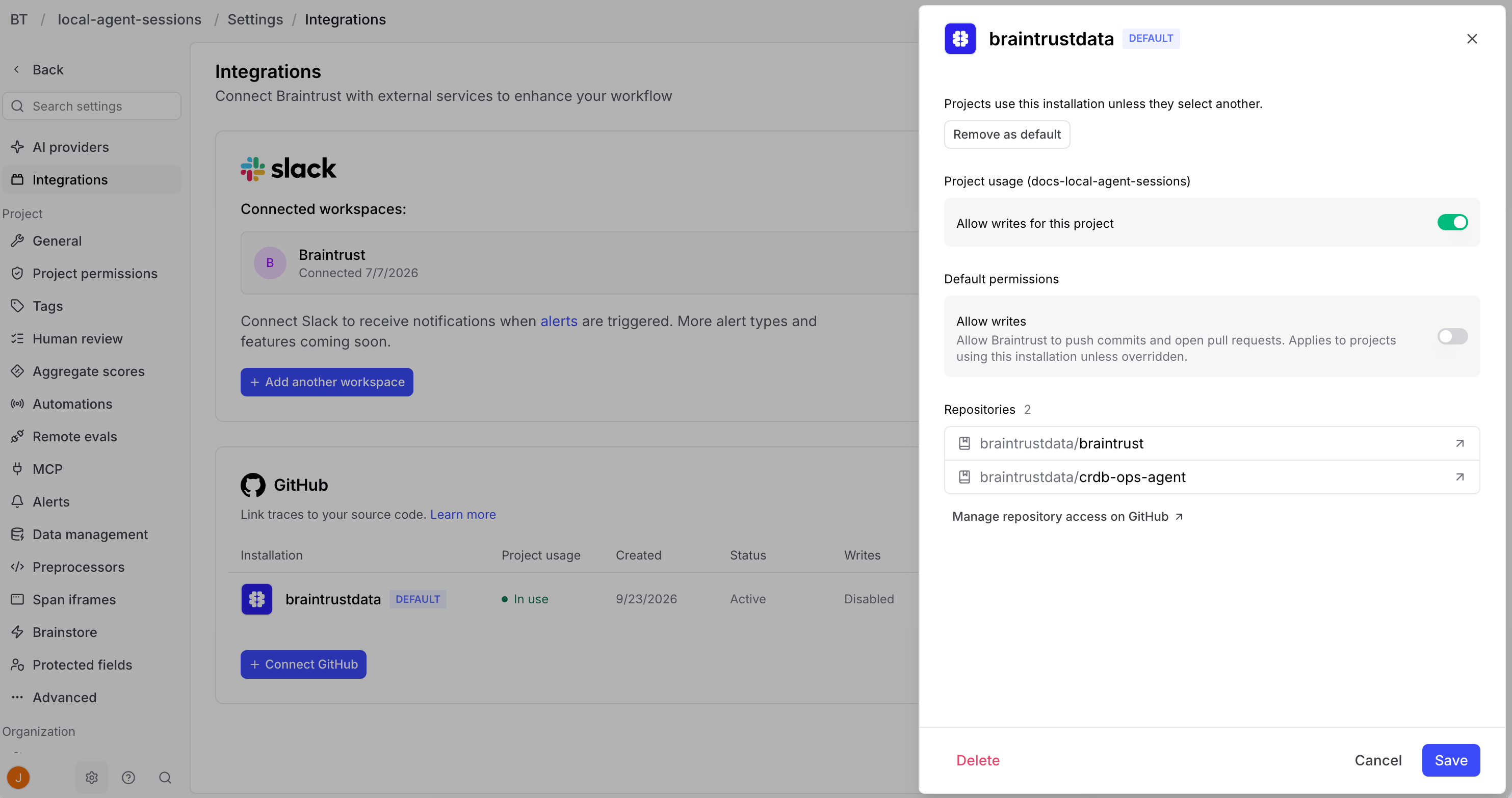
- Project usage: Turn on Allow writes for this project to enable writes for this project.
- Default permissions: Turn on Allow writes to enable writes for projects using this connection. Project settings override this default.
2
Ask Loop for a fix
Start a new Loop thread in the project and ask for a change:
3
Connect your GitHub account
If prompted, connect your GitHub account in the Authorize GitHub card. Loop continues with the requested push and pull request after you connect.
How write access works
- Who can trigger writes: You need Update permission on the project and a project thread. People with read-only project access cannot use Loop to push. Organization-level threads remain read-only, even when attached projects allow writes. Automation runs, including Patterns runs, are also read-only.
- Allowed actions: Push branches with
git pushand open pull requests. The integration doesn’t authorize other GitHub actions, including reading or posting pull request comments, merging, or changing repository settings. - Repositories: Loop can write only to repositories allowed by the project’s GitHub connection where your connected GitHub account has write access. These can include repositories Loop hasn’t automatically cloned.
- Branches: Braintrust doesn’t restrict branch names, pushes to the default branch, or force pushes. Use GitHub branch protection rules or rulesets to protect important branches, for example by requiring pull request reviews before merging to the default branch.
- Turning writes off: Braintrust checks the effective write setting before authorizing each push or pull request creation, including in existing threads. A project override takes precedence over the installation setting. Disabling writes does not undo operations already authorized or remove branches and pull requests already created.
Access and security
Loop uses your connected GitHub account for reads and writes in your conversations, subject to your GitHub permissions and the repositories allowed by the GitHub App installation and project connection. Pushes and pull requests also require write access to be enabled and Update permission on the Braintrust project. Background repository checkouts can use the GitHub App installation’s credentials. Your personal GitHub permissions do not restrict Loop’s access to files already cloned into a sandbox. An egress proxy supplies short-lived GitHub tokens without exposing them to the model or sandbox. The sandbox receives only ephemeral proxy credentials and retains cloned source files for Loop to inspect.Manage connections
Change or remove the organization default
Change or remove the organization default
In Integrations settings, click an installation’s row. Click Set as default to make it the default, or Remove as default to stop providing a default installation, then click Save.These changes affect projects that use the organization default. Projects that selected a different installation are unchanged. Projects without a selected installation can’t use GitHub while no default is set.
Change repository access or disconnect GitHub
Change repository access or disconnect GitHub
To change which repositories Braintrust can access, click Manage on GitHub in an installation’s row in Integrations settings, or click the row and then Manage repository access on GitHub below the Repositories list.If Manage on GitHub doesn’t appear, for example when Braintrust can’t reach GitHub to check the installation, open the Braintrust GitHub App on GitHub and click Configure to change its repository access.To remove an installation from Braintrust, click Disconnect installation in its row, or click the row and then Delete. Confirm the disconnection when prompted. The app remains installed on GitHub.
Troubleshoot a missing repository
Troubleshoot a missing repository
In the project’s Integrations settings, check that the installation marked In use is active and that the repository appears in its Repositories list. If the repository is authorized but was not automatically cloned, ask Loop to clone it by its
owner/repo name.Start a new thread after changing the connection so Loop creates a new sandbox and prepares the checkouts. A failed checkout does not prevent the rest of Loop from working. Ask Loop to check whether the repository is available before continuing a source-code task.Troubleshoot a blocked push or pull request
Troubleshoot a blocked push or pull request
When Braintrust blocks a push or pull request, Loop reports the reason in the thread and what to change. Common causes:
- Writes are off for the project, or you lack Update permission: Loop reports both cases the same way. Check that you have Update permission on the project, and ask someone with the Manage settings organization permission to enable write access for the project’s GitHub connection.
- The thread is organization-level: Continue in a project thread. Organization-level threads are read-only.
- Your GitHub account isn’t connected: Connect your GitHub account when Loop prompts you.
- The run is an automation: Automation runs, including Patterns runs, are read-only, and Loop reports this the same way as disabled writes. Ask for the change in a project thread.
- The repository isn’t part of the project’s GitHub connection: Ask someone with the Manage settings organization permission to add the repository to the installation the project uses. Repository access is changed on GitHub, which can require a GitHub organization owner.
Limitations
- Self-hosted read access requires the Loop runtime on AWS. Cloning and fetching repositories requires the Loop runtime deployed with Terraform AWS module v6.10.0 or later (data plane v2.18.0), which adds the sandbox egress gateway Loop uses to clone repositories. GCP and Azure deployments don’t support it.
- Up to five automatic checkouts. Loop automatically clones the first five authorized repositories, ordered by GitHub repository ID. Ask Loop to clone additional authorized repositories.
- Repository contents only. Loop clones, fetches, and pushes repositories with Git, and opens pull requests. It can’t read pull request descriptions, reviews, comments, issues, or check results, including on pull requests it opened. To address review feedback, paste the comments into the Loop thread and ask Loop to push the changes to the pull request’s branch.
- Shallow checkouts. Each checkout starts with the latest default-branch commit, without tags or earlier history. Ask Loop to fetch additional history or updates as needed.
Next steps
- Explore what Loop can do for more investigation workflows.
- Connect external MCP servers to add context from issue trackers and other services.