

Before you start
To enable Patterns, you need:- Traces. Traces logged to your project.
- Model access. Braintrust’s built-in models use your monthly model credits and need no setup if you meet the requirements. To use your own key or continue after credits run out, configure a compatible AI provider.
- Project permissions. Enabling Patterns requires permission to create project automations, included in the Owners and Engineers permission groups. Anyone who can read the project’s logs can read patterns. Closing and reopening a pattern, correcting its severity or categories, and backfilling missing severity also require the project’s
Updatepermission. - Self-hosted deployments. Data plane v2.13 or later and an enabled Loop runtime, which is available only on AWS.
How Patterns selects a provider
How Patterns selects a provider
- When built-in models are available, Patterns selects them automatically. On Enterprise, you can choose a compatible configured provider instead.
- When built-in models are unavailable, Patterns selects your only compatible configured provider automatically. If you have several, you choose one.
Enable pattern discovery
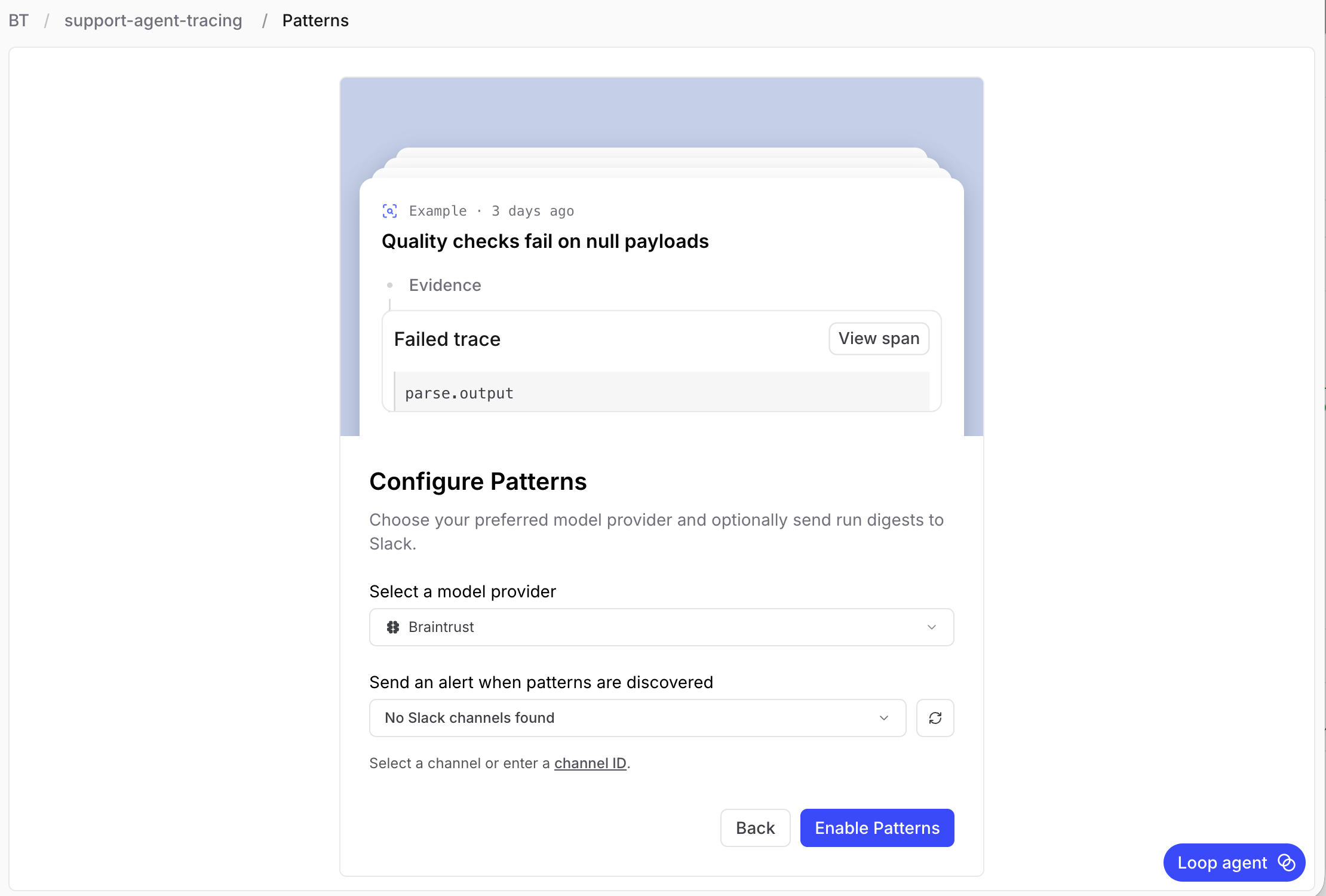
- Go to Patterns and click Continue in the Get started with Patterns panel. If the panel shows Add provider instead, configure an organization-level AI provider first. See Common issues. If it shows Enable Patterns, there’s nothing to configure, so click it and skip to the defaults below.
- Under Select a model provider, choose a provider.
-
Optional: Select a Slack workspace and channel to receive notifications. Loop posts an alert for each new or reactivated pattern. Use a dedicated channel for these alerts.
If more than one Slack workspace is connected, select the workspace first. If the channel isn’t listed, click or enter its channel ID. Leave the channel empty to skip notifications.
What Slack notifications include
Loop sends one alert per pattern it creates or reactivates during a run, up to 20 per Slack destination per run. Updates to an active pattern don’t trigger another alert. A run with no new or reactivated patterns sends no Slack message.Each alert includes the pattern’s name and description, plus available evidence links, severity, categories, and a saved frequency estimate. When Loop measured the pattern against a comparable population, such as requests for the same operation, the estimate counts only those traces, for example “28 of 90 similar traces.” Otherwise, it counts affected traces out of all traces.To add or change a channel after setup, edit the automation’s destinations. - Click Enable Patterns.
- Schedule: Daily at 9:00 AM in your default timezone.
- Query range: The last 30 days.
- Write tool permissions: Create and update patterns.
- Instruction: A default prompt telling Loop what to look for. You can edit it.
- Destinations: The Slack channel you selected, if any.
If a project has no patterns yet and no run is in progress, click Analyze patterns to queue another run without waiting for the schedule.
Tune the automation
To edit the automation, either click Settings on the Patterns page and select the automation, or go to Settings > Automations. When you tune a Patterns automation:- Name: When a project has more than one Patterns automation, the name appears on the patterns it discovers, so choose one that identifies its focus.
- Frequency: A project with steady traffic rarely needs more than the default daily run.
- Default query range: Each run inspects the full range, including traces earlier runs inspected, so widening the 30-day default increases cost.
- Instruction: Keep the instruction framed around finding or updating patterns, even when you narrow it to one concern. An instruction that asks for a summary produces a summary, not a pattern record.
- Write tool permissions: Patterns automations can create and update patterns by default. Add write tools only if you want runs to create other objects, such as scorers or facets.
- Destinations: Choose where to send results. Slack receives per-pattern alerts, while webhook and PagerDuty destinations receive the run output.
Add another Patterns automation
Add another Patterns automation when a concern needs its own scope, schedule, or destination, such as tool-call errors, cost growth, latency for specific customers, or quality regressions sent to a different team’s channel. To change what a single run finds, tune the existing automation instead. Create the automation from the Patterns page rather than from Settings > Automations. A Patterns automation appears in the page’s Settings menu, labels and filters the patterns it discovers, reports failures on the page, and sends Patterns notifications to Slack. A Loop automation created in Settings does none of these.- On the Patterns page, click Settings > New automation. A draft opens with the default Patterns settings and no destination.
- Rename the automation to describe its focus. The name appears on the patterns it discovers.
- Narrow the Instruction to the concern, keeping it framed around finding or updating patterns.
- Adjust Frequency and Default query range for the concern.
- Optionally, add a destination.
- Click Create.
Customize severity and categories
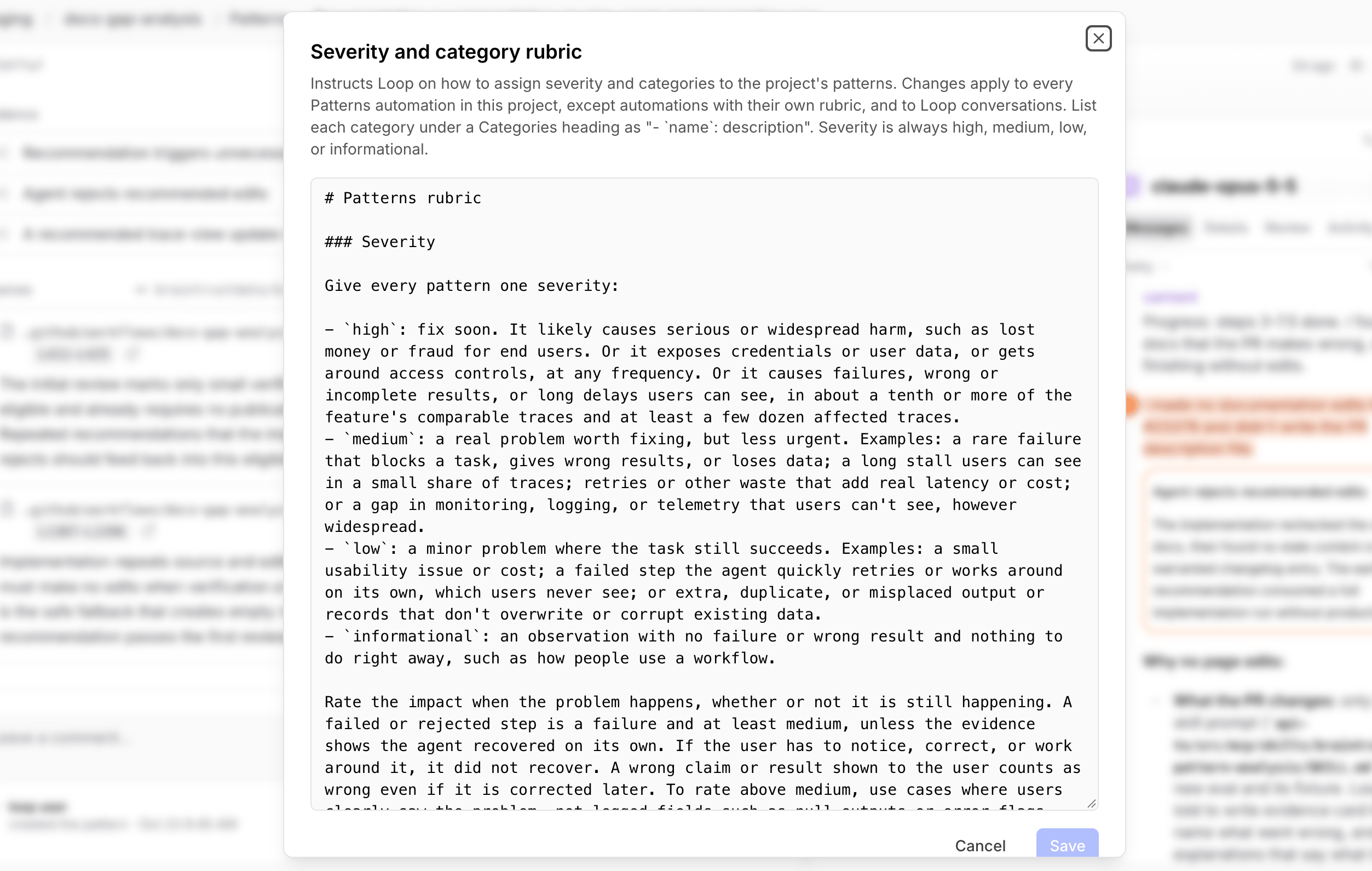
The Severity and category rubric tells Loop how to assign severity and categories. Loop uses the rubric of the Patterns automation that runs, and the project’s rubric for automations without their own and for Loop conversations. Until you save a project rubric, Loop uses the built-in default. Editing either rubric requires the project’sUpdate permission.
The rubric must define at least one category under a Categories heading with each category listed once in the format - `name`: description. It can contain up to 32,000 characters and 64 categories, with category names up to 64 characters each. Existing rubrics with more than 64 categories still load, but you must reduce the count before saving changes.
Edit the project rubric
- On the Patterns page, click Settings > Severity and category rubric.
-
Edit the Markdown guidance. The editor starts with the built-in default until you save a custom rubric. Severity levels remain High, Medium, Low, and Informational, but you can change their criteria and define your own categories.
- Click Save.
Give an automation its own rubric
On older data planes, every Patterns automation in the project shares the project’s rubric. To give one automation its own rubric, click Edit rubric in the Patterns automation’s settings. The editor starts from the project’s rubric, and saving gives the automation its own rubric in place of the project’s. For a new automation, the rubric is saved when you create the automation. If that save fails, the automation is created paused. Check its rubric, then turn it on. To return an automation to the project’s rubric, click (Restore project rubric) next to Edit rubric, then click Restore.Common issues
Setup asks you to add a provider
Setup asks you to add a provider
When neither a compatible organization-level AI provider nor usable built-in models are available, the setup panel shows Add provider instead of Enable Patterns. Click Add provider to configure a provider without leaving setup.
- Built-in models are disabled. To use them instead of your own provider, enable them in Settings > Models. Your organization must meet the built-in model requirements.
- Your model credits are exhausted. Add your own provider key with Add provider, or select Upgrade to raise your plan’s limits. See model credits for how usage is counted.
An automation error appears on the Patterns page
An automation error appears on the Patterns page
If the latest run of an enabled Patterns automation fails, the page header shows Last run failed:
- Click it to see automation names and error messages.
- Select an entry to open the failed run in Loop in a new tab.
A run finished but recorded nothing
A run finished but recorded nothing
Loop records a pattern only when it can attach supporting evidence, so a quiet run is a normal outcome rather than a failure.To work out what happened, open the automation, select the Past runs tab, and select the run to read the transcript. Select Fork to chat to fork it into an editable thread and ask Loop directly why it recorded nothing.If runs are consistently empty, the query range or the instruction is usually too narrow.
Patterns aren't notifying Slack
Patterns aren't notifying Slack
Destinations belong to automation runs. Patterns that Loop records during an interactive chat appear in the list but do not trigger Slack or webhook destinations.A run sends Slack alerts only when it creates or reactivates patterns. A run that only updates existing patterns sends no Slack message.Confirm the destination is configured on the automation itself, under Destinations in the configuration panel, and that the Slack workspace is still connected.
The page asks you to upgrade your data plane
The page asks you to upgrade your data plane
Patterns requires data plane v2.13 or later. To upgrade, see the routine upgrade guide.
Next steps
- Review and act on patterns once the first run finishes.
- Run Loop on a schedule to configure destinations, write permissions, and past runs in depth.
- Set up alerts for conditions you already know how to detect.
- To learn how to find recurring problems in your team’s coding-agent sessions and review them as patterns, read Improving coding agents with coding agent insights.