

Requirements
To show data, the dashboard needs:- Coding-agent traces sent by the
bttracing integration for Claude Code, Codex, Cursor, OpenCode, Pi, Antigravity, Grok, or Muse Code. - A dedicated project. The dashboard counts model and tool calls from every trace in the project, including traces logged with a Braintrust SDK, so keep coding-agent traces in a project of their own.
Open the dashboard
In the project that receives your coding-agent traces, go to Dashboards > Coding agent insights. Coding agent insights is a built-in dashboard, like Cost and quality. It’s read-only, so you can’t add or edit its charts the way you can on a dashboard you create. You can star it like other dashboards. See Browse dashboards.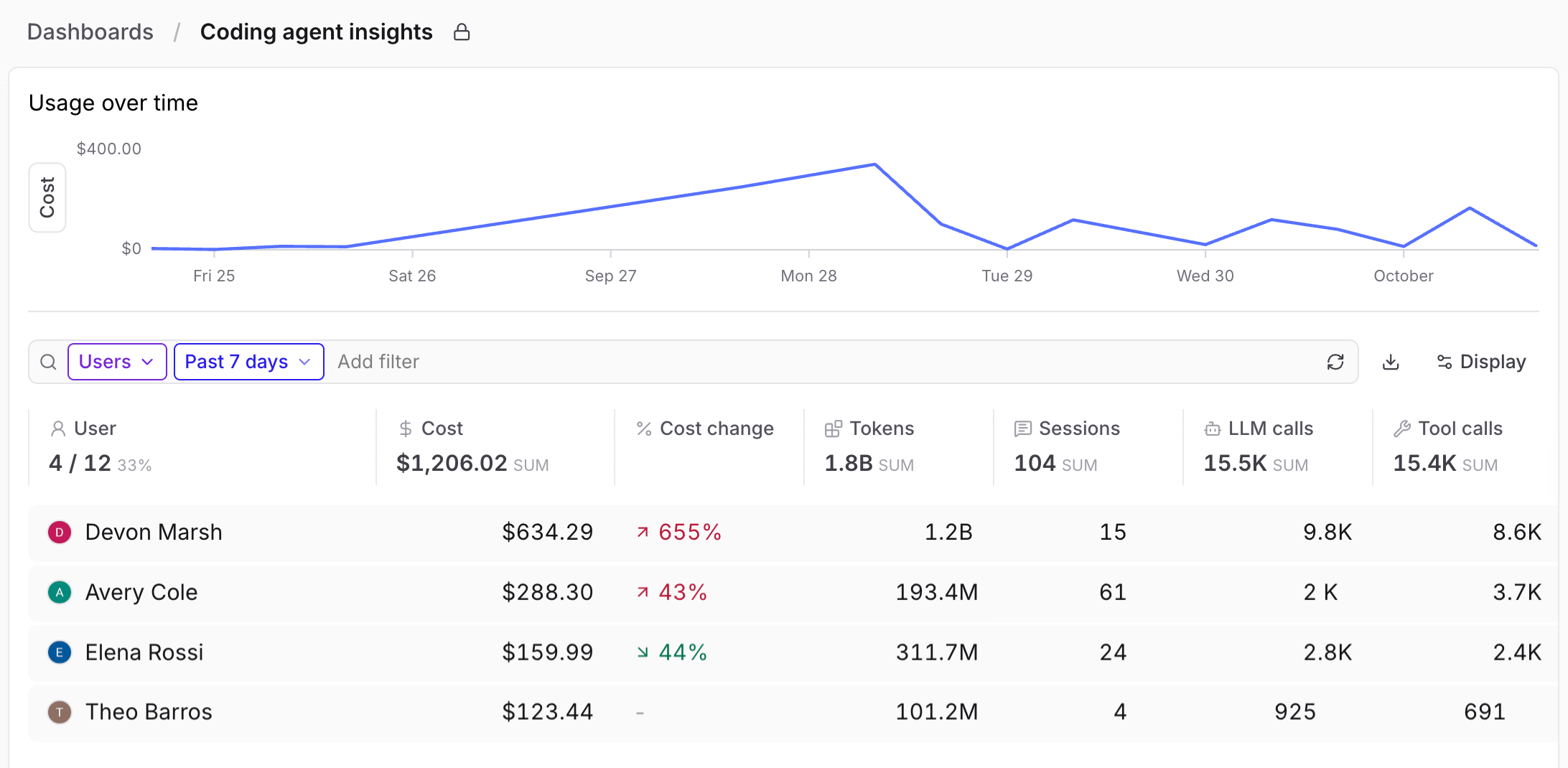
What the dashboard shows
The dashboard answers three kinds of questions about your team’s coding-agent work:- Who is sending traces. The dashboard shows which teammates have recorded model calls matching the selected period and filters.
- How agents are used. The dashboard shows how many sessions, model calls, and tool calls your team’s agents make, and which models and tools they use.
- Where cost goes. The dashboard breaks down cost by the member or service account that authenticated each trace, as well as by permission group, model, and branch. For traces sent with an API key or service token instead of an OAuth login, it can also break cost down by key. Users, Groups, and Keys also show cost changes from the previous period.
metrics.estimated_cost, Braintrust uses that instead.
A Usage over time chart at the top shows cost across the selected period. To plot token counts instead, click Cost beside the chart and select Tokens.
Below the chart, a table summarizes usage for the period. The time range selector in the table toolbar, such as Past 7 days, sets the period for both the chart and the table. Add filter narrows both to a subset of traces.
Group the table
The table shows one grouping at a time. To change it, use the grouping selector in the table toolbar, which shows Users by default.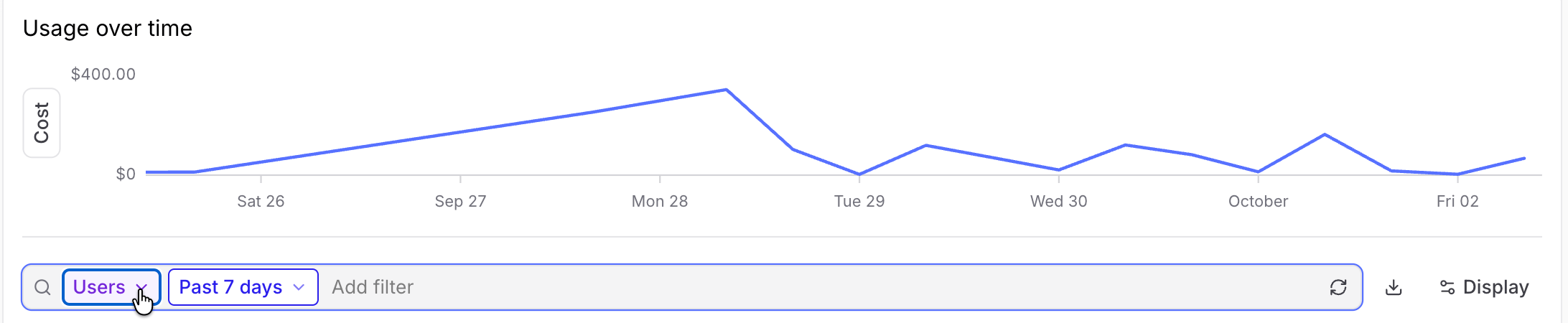
When a trace records both identities, it appears in both breakdowns. Users groups it by the member or service account that owns the credential. Keys groups it by the specific API key or service token used.
See who is sending traces
In the Users grouping, the User column header shows how many organization members are sending traces. For more detail, click the count to open the User trace coverage display, which lists who is Sending traces and who is Not sending traces. A count such as4 / 12 means that 4 of the organization’s 12 human members sent model calls matching the selected period and filters. Service accounts are excluded from both numbers. If someone sends traces using a service account’s credentials, the dashboard attributes those traces to the service account, not that person.
Compare permission groups
In the Groups grouping, a member or service account that belongs to more than one permission group counts toward each group. As a result, the group rows can add up to more than the summary totals, which count each member or service account’s usage once.The dashboard attributes each session to the member or service account used to authenticate its traces. If teammates share one API key, all of their sessions appear under the key’s owner. To keep per-person usage accurate, have each teammate use their own credentials: their own OAuth login or their own API key.
Investigate a row
Group and branch rows open Logs, filtered to that row and the dashboard’s period and filters. For a permission group, Logs shows traces from the group’s active members. Rows for groups with more than 50 active members can’t be clicked. To open Logs in a new tab, hold Cmd or Ctrl while you click. To ask Loop about a row instead, hover over the row’s name until the Loop icon appears, then click it. Loop opens with a prompt about that user, permission group, key, model, tool, or branch.When the dashboard is empty
Until the project has coding-agent traces, the dashboard shows a setup screen instead of data. It includes a command for enabling tracing in your coding agent and a link to the docs. The dashboard appears as soon as the first trace arrives.Protect sensitive data
Coding-agent traces can contain source code, file paths, prompts, command output, and any credentials that appear during a session. Braintrust supports two ways to keep sensitive data out of stored traces, and you can use them together:- Ingestion redaction (private preview) replaces detected sensitive text before storage. Model-based detection can miss values.
- Span plugins remove values on each computer before
btsends them, so those values never reach Braintrust. Span plugins requirebtv0.21.0 or later.
Next steps
- To learn how to set up tracing and recurring problem detection for your team, read Improving coding agents with coding agent insights.
- Learn how to review and act on patterns.
- Read about built-in and custom dashboards.
- Enable tracing for each coding agent with
bt trace enable.